> ## Documentation Index
> Fetch the complete documentation index at: https://docs.mspilot.io/llms.txt
> Use this file to discover all available pages before exploring further.
# Autotask
Connect Autotask with an **API User (system)** account. MSPilot uses it to import companies as clients, then keep contacts in sync.
You need an Autotask administrator who can create resources. Don't use a technician login.
## Create an API user in Autotask
1. In Autotask, go to **Admin → Organization Settings & Users → Resources/Users (HR) → Resources/Users**. Some sites label this **Account Settings & Users**.
2. Open the **New** menu and select **New API User**. Don't click **New** to create a regular resource.
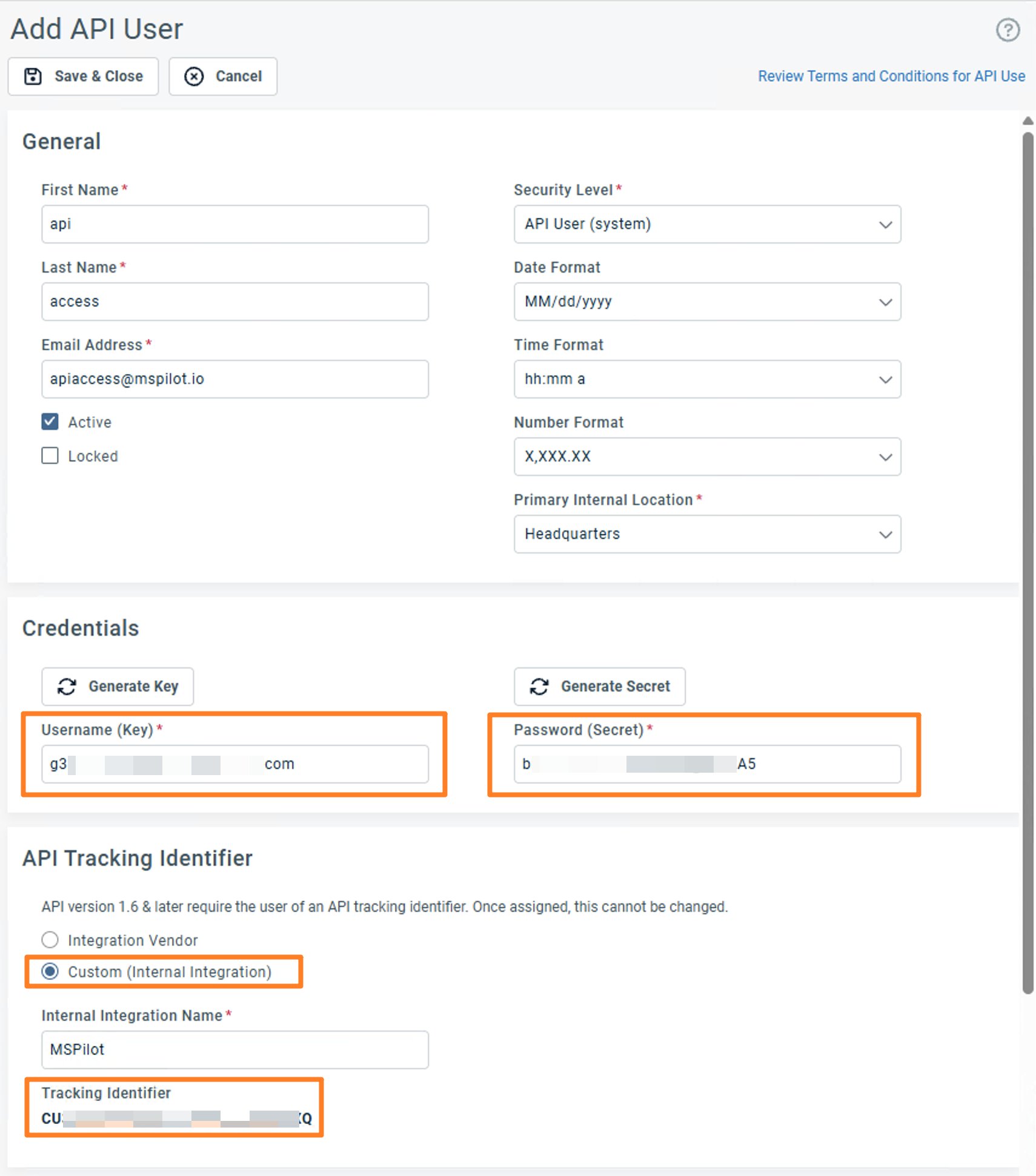
3. Enter a first name, last name, and an email Autotask can use for notifications. That email is not the API username. Leave **Active** checked.
4. Set **Security Level** to **API User (system)**. If this integration shouldn't see cost data, use **API User (system) Can't Read Costs** instead.
5. Choose a **Primary Internal Location**. Pick the office this API user belongs to — usually your main location. The list is unique to your Autotask site.
6. Under **Credentials**, click **Generate Key** and **Generate Secret**.
* **Username (Key)** → MSPilot **API username**
* **Password (Secret)** → MSPilot **Secret**
7. Under **API Tracking Identifier**, select **Custom (Internal Integration)**. Enter an **Internal Integration Name** you'll recognize later, such as `MSPilot`. The generated **Tracking Identifier** → MSPilot **API tracking identifier**.
8. Copy the username, secret, and tracking identifier to a password manager, then click **Save & Close**. After you close the page, Autotask won't show the secret again. You'll paste all three in the next step.
 ## Connect Autotask
1. In MSPilot, open **Integrations** and choose **Autotask**.
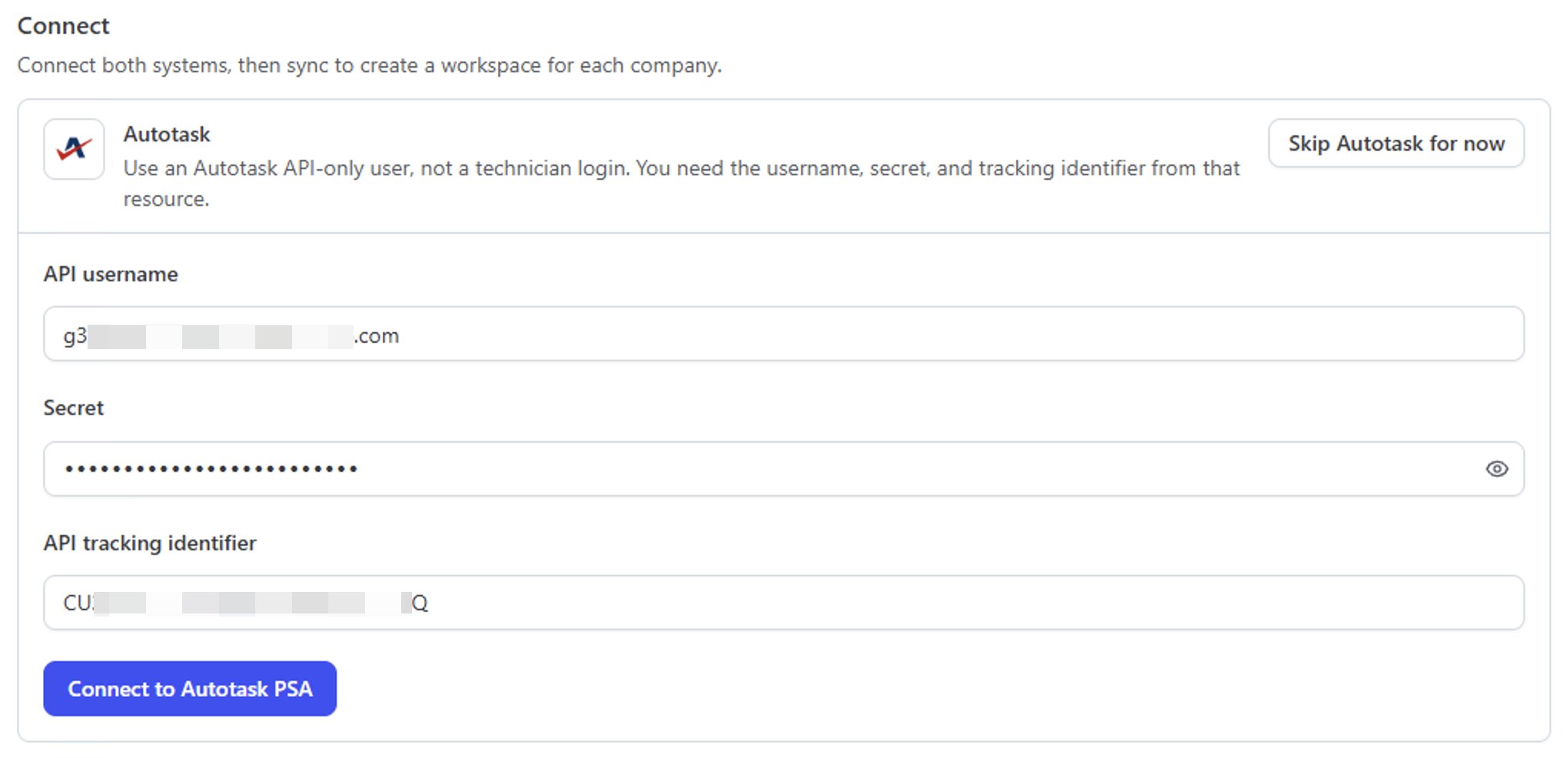
2. Paste **API username**, **Secret**, and **API tracking identifier**.
3. Click **Connect to Autotask PSA**.
## Connect Autotask
1. In MSPilot, open **Integrations** and choose **Autotask**.
2. Paste **API username**, **Secret**, and **API tracking identifier**.
3. Click **Connect to Autotask PSA**.
 ## After you connect
MSPilot imports Autotask companies as clients and syncs contacts onto those clients.
If you also connect an RMM, map each client's devices to the matching Autotask company so inventory lands in the right client.
## After you connect
MSPilot imports Autotask companies as clients and syncs contacts onto those clients.
If you also connect an RMM, map each client's devices to the matching Autotask company so inventory lands in the right client.