> ## Documentation Index
> Fetch the complete documentation index at: https://docs.mspilot.io/llms.txt
> Use this file to discover all available pages before exploring further.
# Datto
Connect Datto RMM with an API key and secret from a Datto user. MSPilot uses them to sync devices into your clients, and later to run the enroll component.
You need a Datto RMM administrator. Use a dedicated user for MSPilot when you can — don't generate keys on a technician's personal login.
## Enable API access
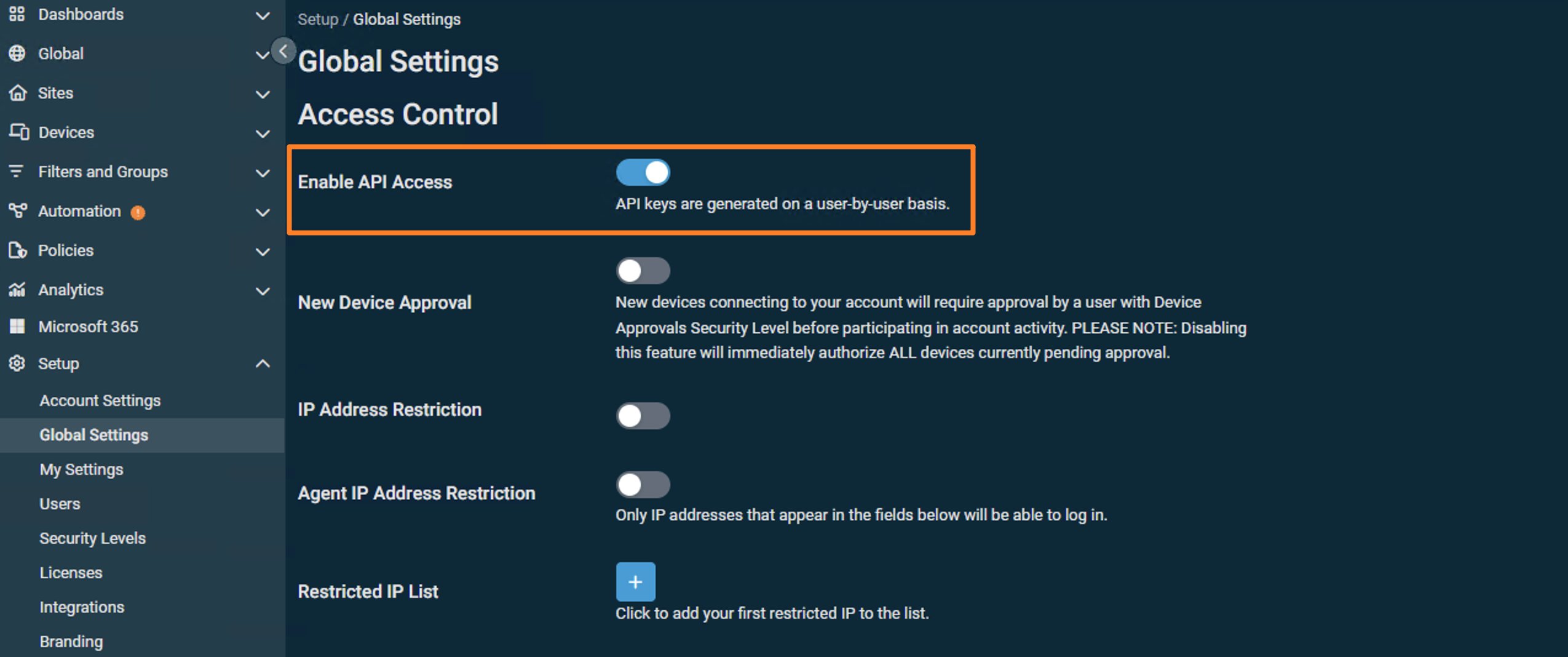
1. In Datto RMM, go to **Setup → Global Settings**.
2. Under **Access Control**, turn on **Enable API Access**. Keys are created per user. This switch has to be on first, or the API section won't appear on the user page.
 ## Create a Datto user
1. Go to **Setup → Users** and click **Create user**. You can generate keys on an existing user instead. A dedicated user named `MSPilot` is easier to revoke later.
2. Enter a **Username** and **Email address**. Leave **User status** set to **Active**.
3. Under **Security** (this is for the Datto console, not the API keys):
* Leave **Component level** at the default **Low (2)** unless this user will log in and work in the Component Library.
* Set **Security Levels** to **administrator**.
* Set **Default security level** to **administrator** (the list only includes the levels you assigned).
4. Click **Create user**.
## Create a Datto user
1. Go to **Setup → Users** and click **Create user**. You can generate keys on an existing user instead. A dedicated user named `MSPilot` is easier to revoke later.
2. Enter a **Username** and **Email address**. Leave **User status** set to **Active**.
3. Under **Security** (this is for the Datto console, not the API keys):
* Leave **Component level** at the default **Low (2)** unless this user will log in and work in the Component Library.
* Set **Security Levels** to **administrator**.
* Set **Default security level** to **administrator** (the list only includes the levels you assigned).
4. Click **Create user**.
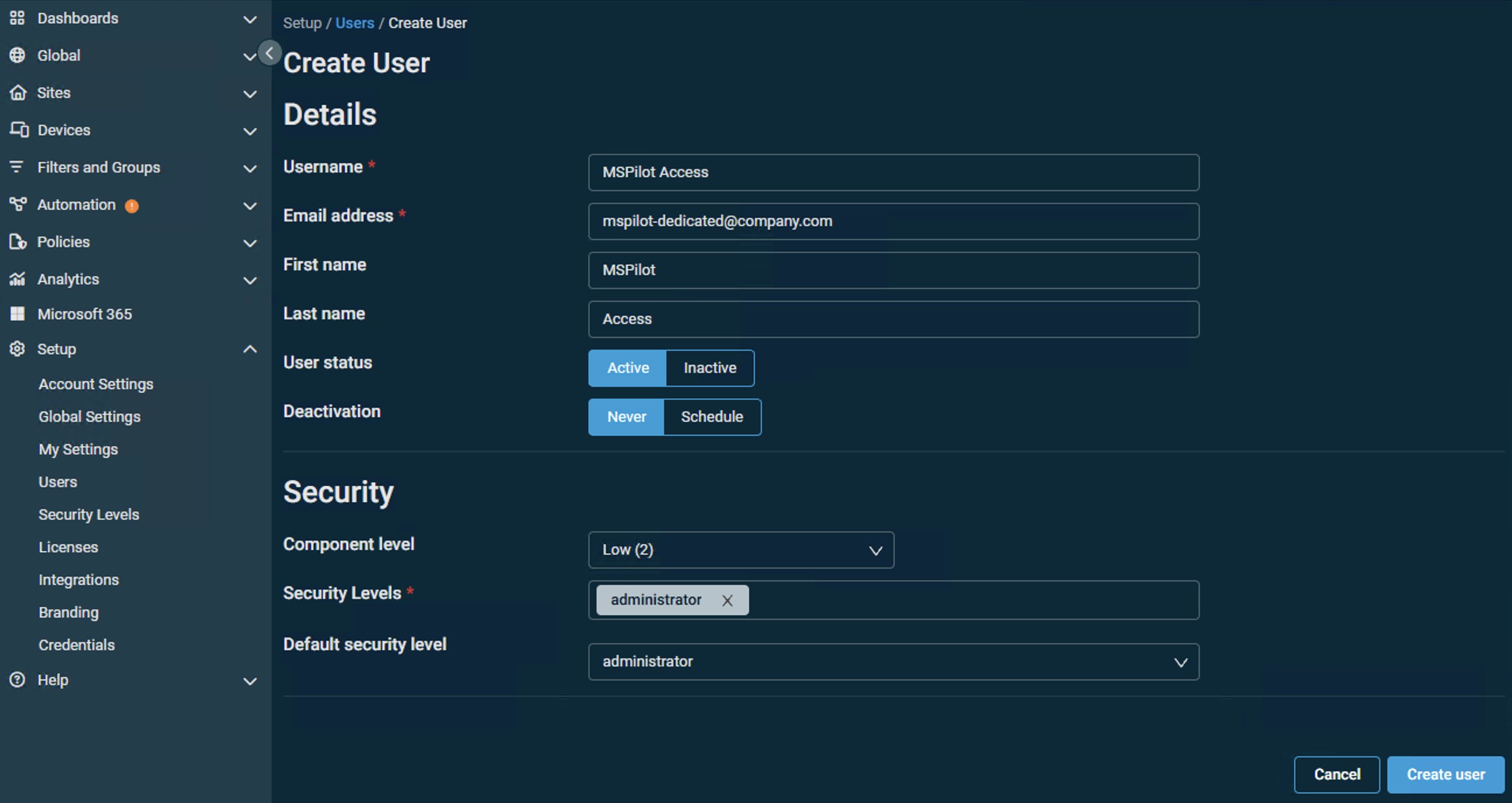 The create form has no API fields. Keys are generated on the user detail page next.
## Generate API keys
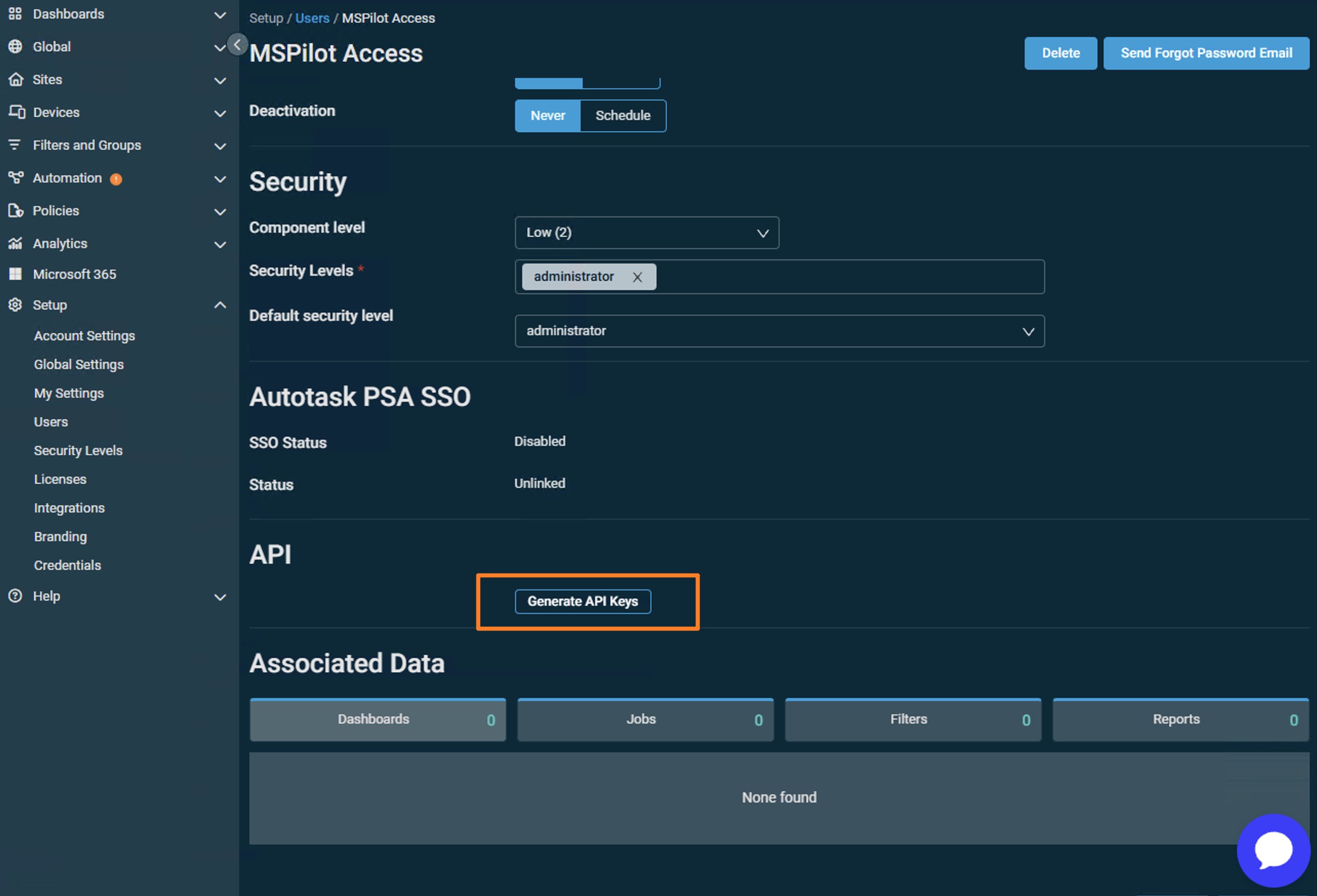
1. Open **Setup → Users** and click the user you just created.
2. In the **API** section, click **Generate API Keys**. The API fields are hidden until you do this.
The create form has no API fields. Keys are generated on the user detail page next.
## Generate API keys
1. Open **Setup → Users** and click the user you just created.
2. In the **API** section, click **Generate API Keys**. The API fields are hidden until you do this.
 3. Set **API security level** to **administrator** (or another level that can manage sites, devices, and jobs).
4. Set **API Components level** to **Super (5)**. It defaults to **Low (2)**. MSPilot needs a level that can run the enroll component.
5. Copy **API key**, **API Secret Key**, and note the **API URL** to a password manager, then click **Save User**. Datto shows a notice that you cannot retrieve the secret again. Generating keys again invalidates the previous pair.
3. Set **API security level** to **administrator** (or another level that can manage sites, devices, and jobs).
4. Set **API Components level** to **Super (5)**. It defaults to **Low (2)**. MSPilot needs a level that can run the enroll component.
5. Copy **API key**, **API Secret Key**, and note the **API URL** to a password manager, then click **Save User**. Datto shows a notice that you cannot retrieve the secret again. Generating keys again invalidates the previous pair.
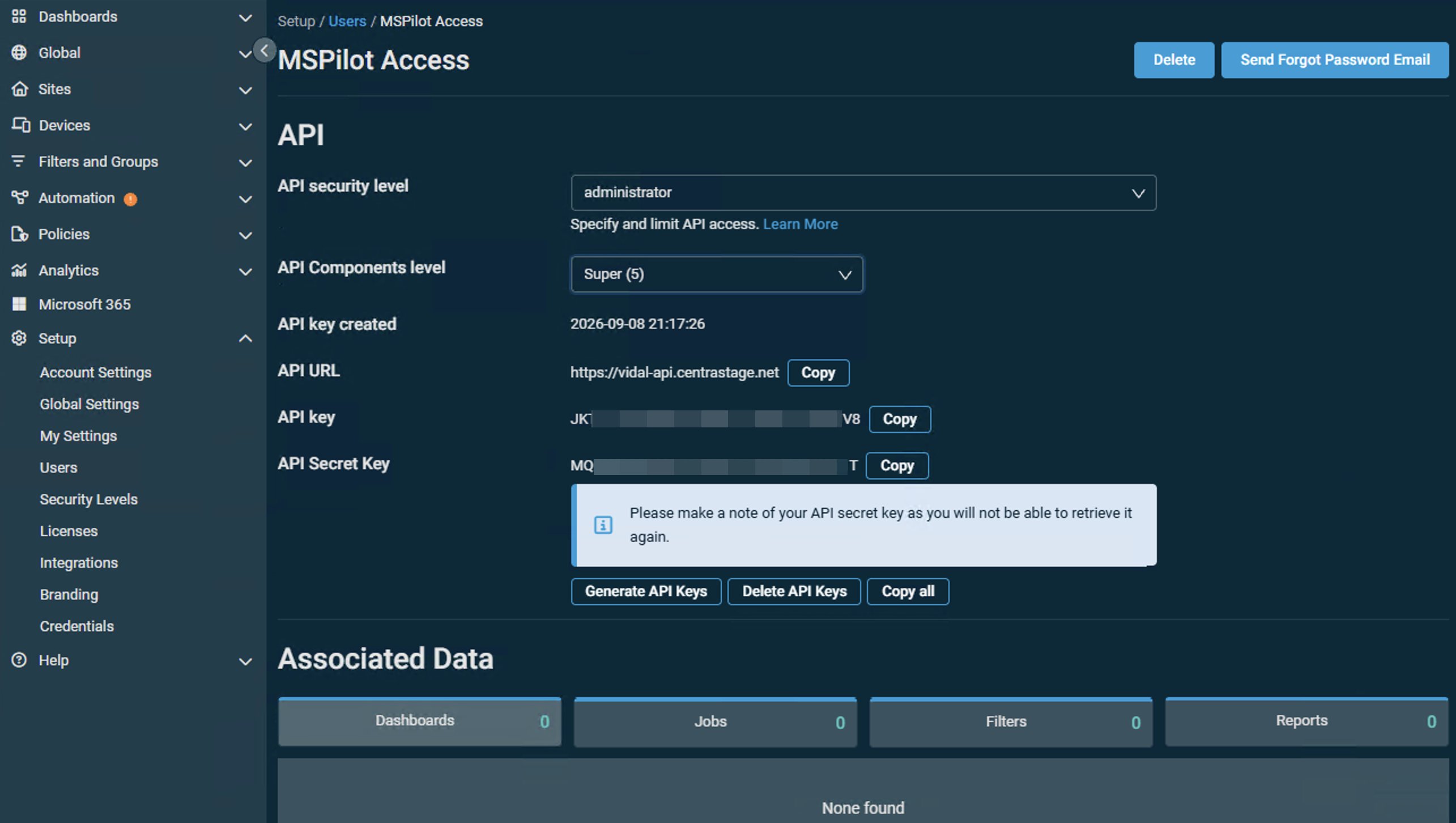 The **API URL** is not pasted into MSPilot. Use it to pick the matching **Platform**.
| Platform | URL |
| --------- | ------------------------------------------------------------------ |
| Pinotage | [https://pinotage.rmm.datto.com](https://pinotage.rmm.datto.com) |
| Merlot | [https://merlot.rmm.datto.com](https://merlot.rmm.datto.com) |
| Concord | [https://concord.rmm.datto.com](https://concord.rmm.datto.com) |
| Vidal | [https://vidal.rmm.datto.com](https://vidal.rmm.datto.com) |
| Zinfandel | [https://zinfandel.rmm.datto.com](https://zinfandel.rmm.datto.com) |
| Syrah | [https://syrah.rmm.datto.com](https://syrah.rmm.datto.com) |
## Connect Datto RMM
1. In MSPilot, open **Integrations** and choose **Datto RMM**.
2. Select the **Platform** that matches the URL you sign in to Datto RMM with. If your API URL is `https://vidal.rmm.datto.com/...`, choose **Vidal**.
3. Paste **API key** and **API secret**.
4. Click **Connect Datto RMM**.
## After you connect
MSPilot syncs devices from Datto RMM into your clients.
Map each client to the Datto site that should supply its device inventory. Each Datto site can map to only one client.
The **API URL** is not pasted into MSPilot. Use it to pick the matching **Platform**.
| Platform | URL |
| --------- | ------------------------------------------------------------------ |
| Pinotage | [https://pinotage.rmm.datto.com](https://pinotage.rmm.datto.com) |
| Merlot | [https://merlot.rmm.datto.com](https://merlot.rmm.datto.com) |
| Concord | [https://concord.rmm.datto.com](https://concord.rmm.datto.com) |
| Vidal | [https://vidal.rmm.datto.com](https://vidal.rmm.datto.com) |
| Zinfandel | [https://zinfandel.rmm.datto.com](https://zinfandel.rmm.datto.com) |
| Syrah | [https://syrah.rmm.datto.com](https://syrah.rmm.datto.com) |
## Connect Datto RMM
1. In MSPilot, open **Integrations** and choose **Datto RMM**.
2. Select the **Platform** that matches the URL you sign in to Datto RMM with. If your API URL is `https://vidal.rmm.datto.com/...`, choose **Vidal**.
3. Paste **API key** and **API secret**.
4. Click **Connect Datto RMM**.
## After you connect
MSPilot syncs devices from Datto RMM into your clients.
Map each client to the Datto site that should supply its device inventory. Each Datto site can map to only one client.