> ## Documentation Index
> Fetch the complete documentation index at: https://docs.mspilot.io/llms.txt
> Use this file to discover all available pages before exploring further.
# ImmyBot
Connect ImmyBot with a **Microsoft Entra app registration** in the tenant your ImmyBot instance already uses to sign in. MSPilot uses it to sync tenants and computers into your clients, and later to install the approved MSPilot software entry.
You need an ImmyBot administrator, and a Microsoft Entra administrator who can create app registrations in **that same tenant**. Use a dedicated app named `MSPilot`. Don't create it in a customer's Entra tenant, and don't reuse a technician's existing app.
ImmyBot does not issue its own API keys. Each MSP that connects MSPilot creates **their own** Entra app for **their own** ImmyBot instance — the same pattern as creating a NinjaOne client app, except the app lives in Entra instead of inside ImmyBot.
Complete the Entra and ImmyBot authorization steps **before** you click Connect in MSPilot. A valid client ID and secret are not enough on their own.
## Find your instance subdomain
1. Sign in to ImmyBot as you normally do.
2. Copy the hostname. For `https://acme.immy.bot`, the subdomain is `acme`.
3. Enter only that subdomain in MSPilot. Don't include `https://`, and don't include `.immy.bot`.
This is the instance MSPilot will call. If the subdomain is wrong, Entra may still issue a token, but the connection to ImmyBot fails.
## Register an app in Microsoft Entra
Create this app in the Microsoft tenant bound to your ImmyBot instance — usually the tenant you use to sign in to ImmyBot. That is your MSP tenant, not a customer tenant.
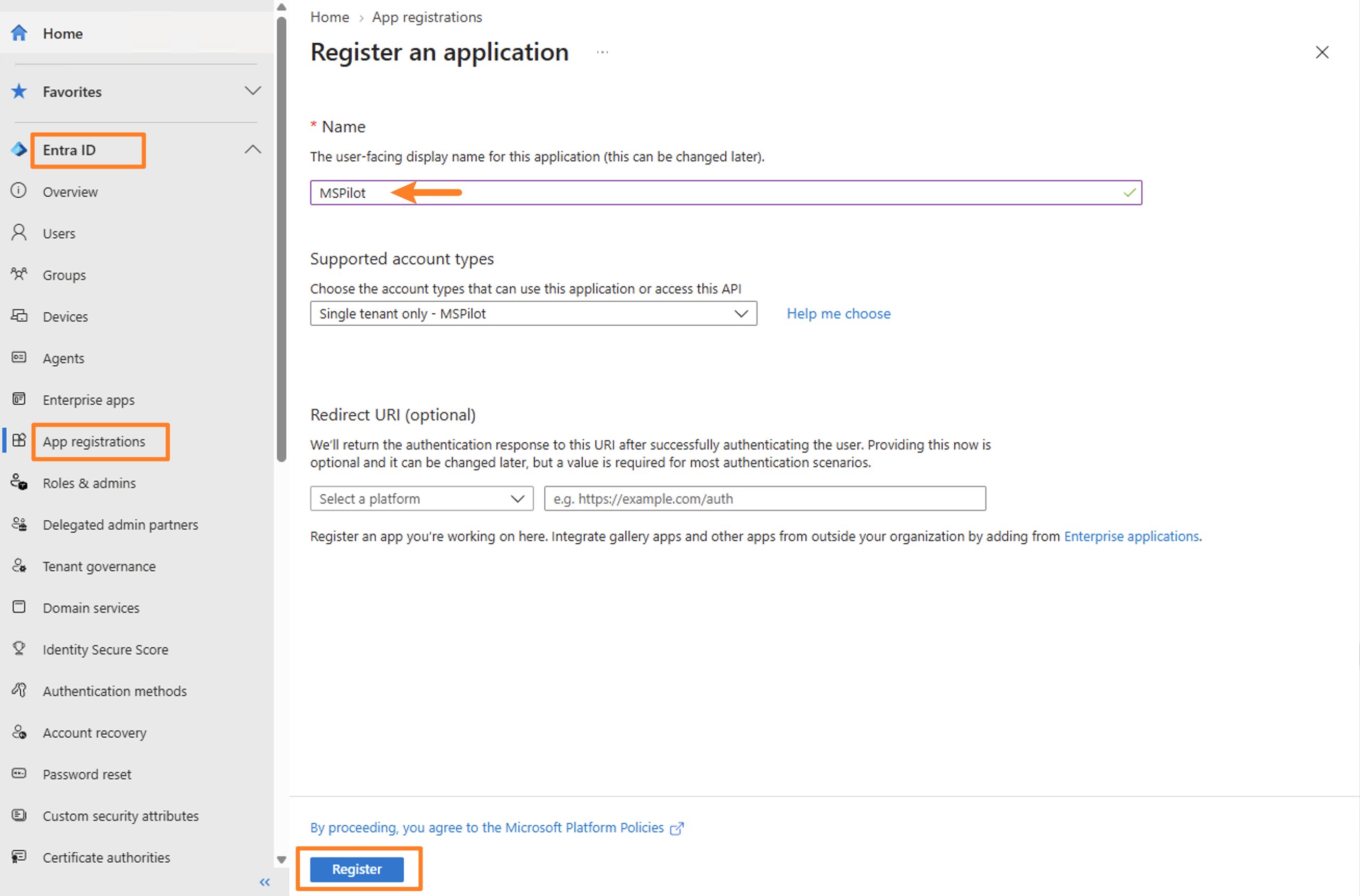
1. Open [Microsoft Entra admin center](https://entra.microsoft.com) and go to **Entra ID → App registrations**.
2. Click **New registration**.
3. Set **Name** to `MSPilot`.
4. Leave **Supported account types** on **Accounts in this organizational directory only (Single tenant)**. Don't switch this to multi-tenant. This app only authenticates against your tenant so MSPilot can reach your ImmyBot instance.
5. Leave **Redirect URI** empty. MSPilot uses client credentials. There is no browser sign-in and no callback URL.
6. Click **Register**.
 7. On the app **Overview**, copy these two values to a password manager:
* **Directory (tenant) ID** → MSPilot **Microsoft Entra tenant ID**
* **Application (client) ID** → MSPilot **Application client ID**
7. On the app **Overview**, copy these two values to a password manager:
* **Directory (tenant) ID** → MSPilot **Microsoft Entra tenant ID**
* **Application (client) ID** → MSPilot **Application client ID**
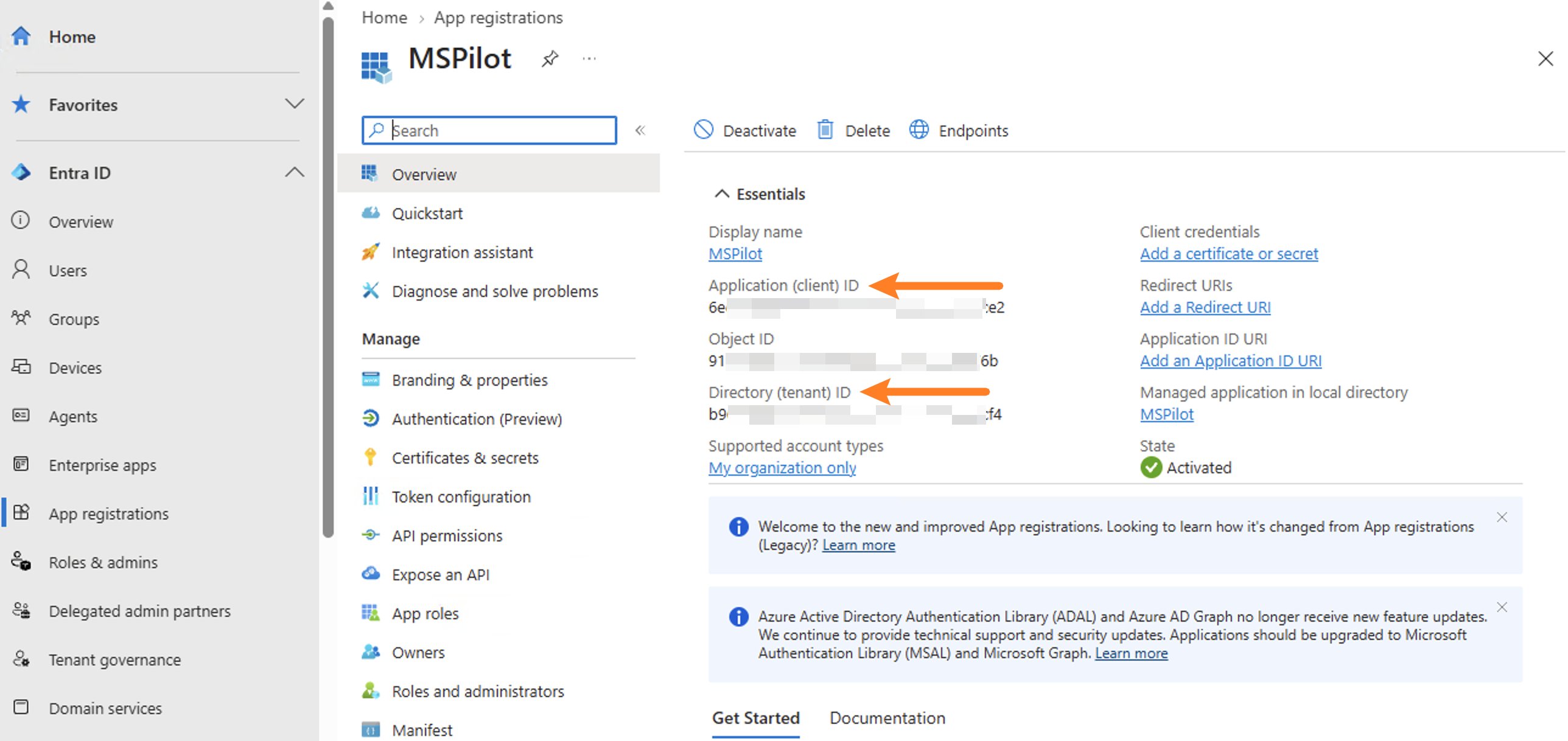 Leave the **Object ID** on this Overview page alone. That is the app registration object ID. ImmyBot needs a different Object ID from the Enterprise application, in the next section after the secret.
## Create a client secret
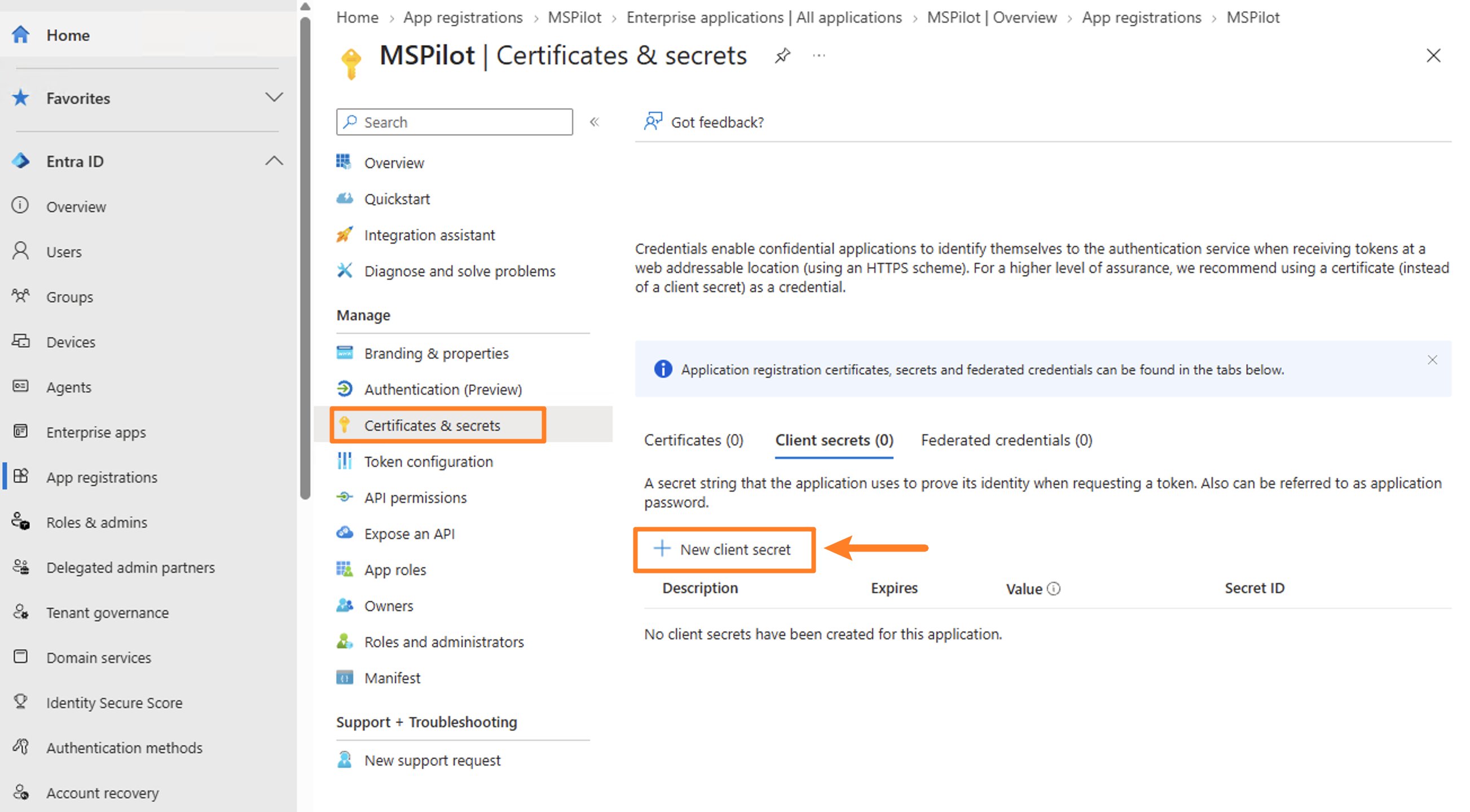
1. In the same app, go to **Certificates & secrets**.
2. Click **New client secret**.
Leave the **Object ID** on this Overview page alone. That is the app registration object ID. ImmyBot needs a different Object ID from the Enterprise application, in the next section after the secret.
## Create a client secret
1. In the same app, go to **Certificates & secrets**.
2. Click **New client secret**.
 3. Set a description you'll recognize later, such as `MSPilot`.
4. Choose an expiry you can rotate on time. When this secret expires, the MSPilot connection stops until you create a new one and reconnect.
5. Click **Add**.
6. Copy **Value** immediately to a password manager. Entra will not show it again.
Paste **Value**, not **Secret ID**. Secret ID looks similar and will fail authentication.
## Copy the Enterprise application Object ID
Goto **Entra ID → Enterprise Apps**. Select `MSPilot` you just created app in **All Applications**, copy **Object ID** to a password manager.
3. Set a description you'll recognize later, such as `MSPilot`.
4. Choose an expiry you can rotate on time. When this secret expires, the MSPilot connection stops until you create a new one and reconnect.
5. Click **Add**.
6. Copy **Value** immediately to a password manager. Entra will not show it again.
Paste **Value**, not **Secret ID**. Secret ID looks similar and will fail authentication.
## Copy the Enterprise application Object ID
Goto **Entra ID → Enterprise Apps**. Select `MSPilot` you just created app in **All Applications**, copy **Object ID** to a password manager.
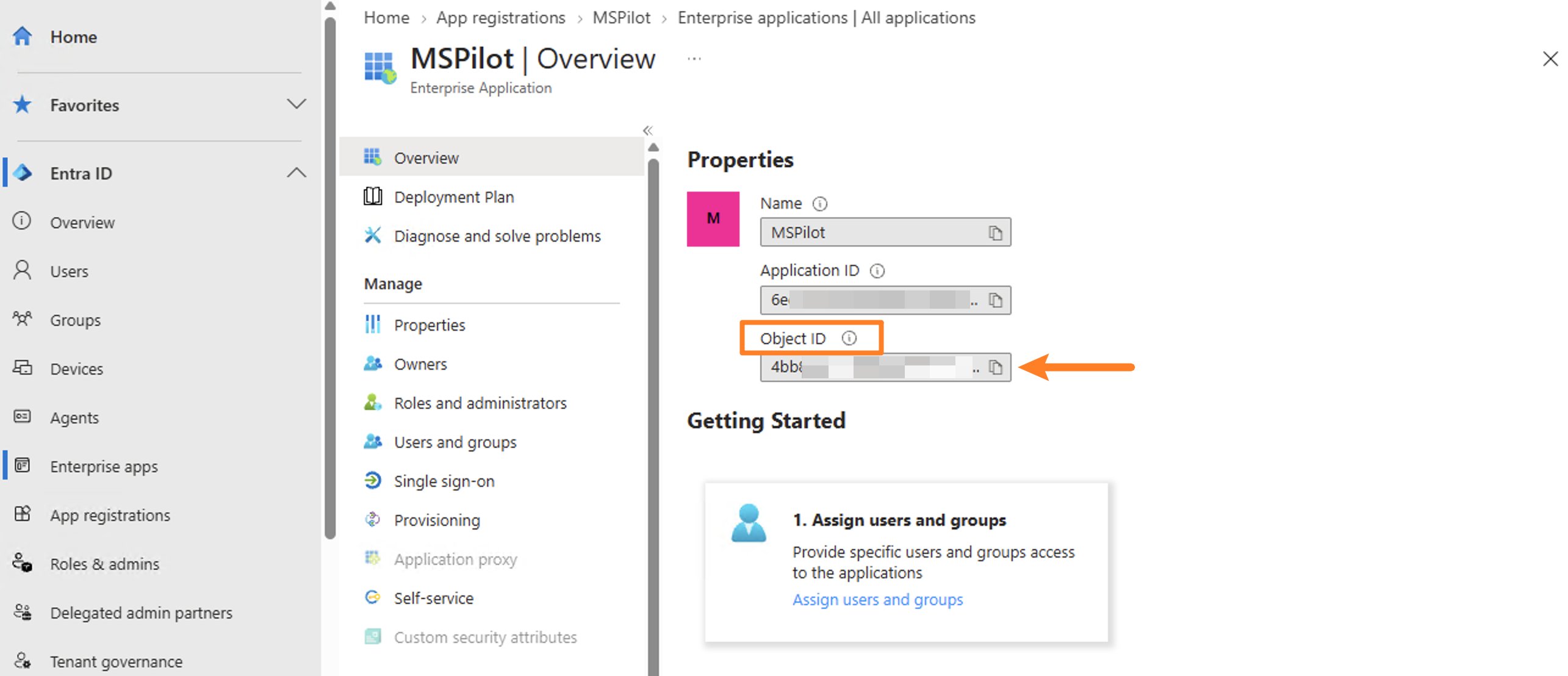 This Object ID is **not** the Application (client) ID, and **not** the Object ID on the App registration Overview. ImmyBot's own docs call this out: the Enterprise app Object ID is the one that works.
**You will paste this into ImmyBot, not into MSPilot.**
## Authorize the app inside ImmyBot
The Entra app is only an identity. ImmyBot accepts API calls from it only after that identity exists as an **admin user** in your instance.
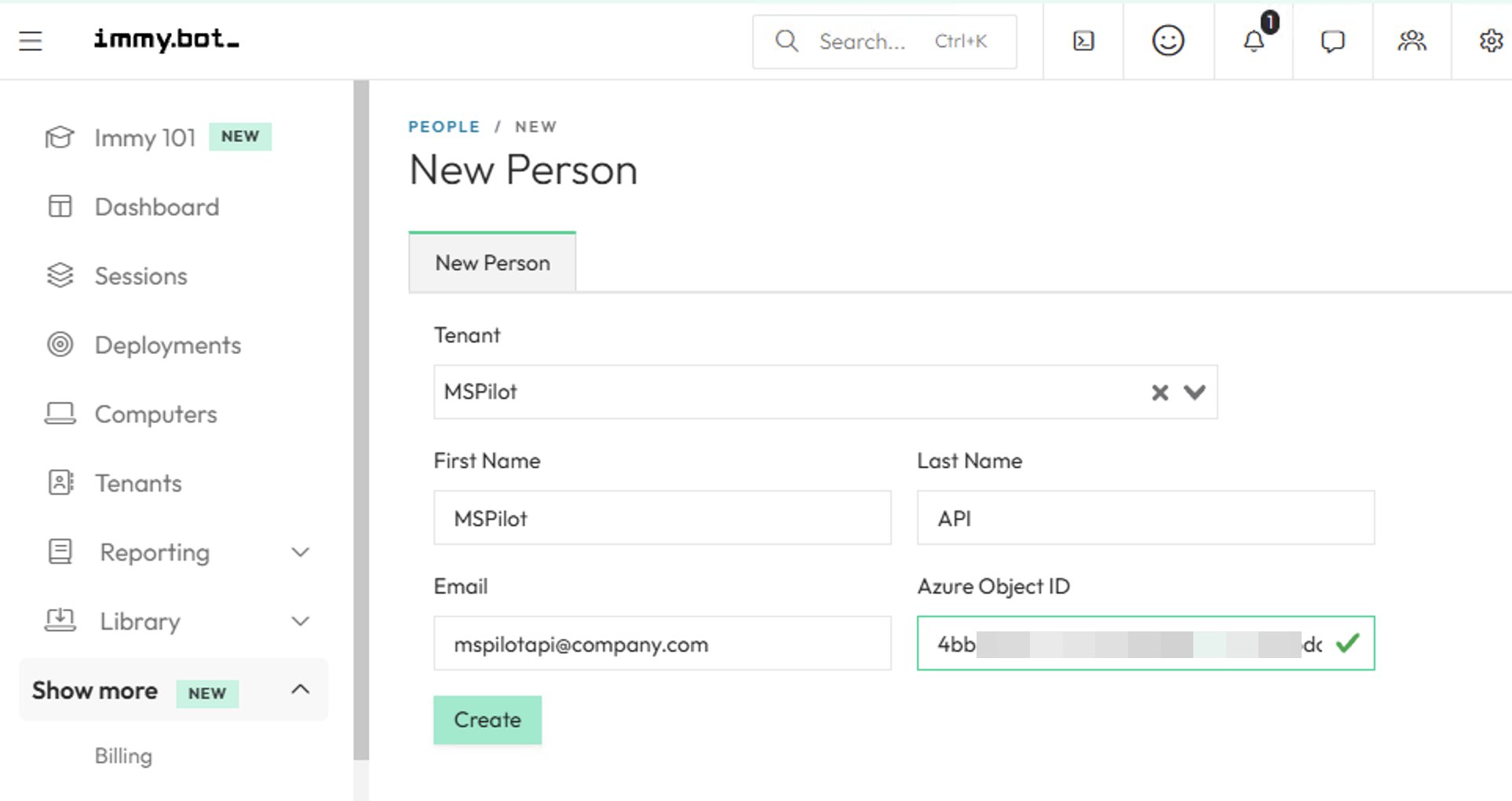
1. In ImmyBot, go to **Show More → People → New**.
2. Set **Tenant** to your MSP tenant (the first / default tenant on the instance — not a customer tenant).
3. Enter a first name and last name you'll recognize, such as `MSPilot` / `API`.
4. Enter a valid email. ImmyBot requires one; this Person will not sign in interactively.
5. Paste the Enterprise application **Object ID** into **Azure Object ID**. Some ImmyBot sites label this field **AD External ID**. It is the same field.
6. Create.
This Object ID is **not** the Application (client) ID, and **not** the Object ID on the App registration Overview. ImmyBot's own docs call this out: the Enterprise app Object ID is the one that works.
**You will paste this into ImmyBot, not into MSPilot.**
## Authorize the app inside ImmyBot
The Entra app is only an identity. ImmyBot accepts API calls from it only after that identity exists as an **admin user** in your instance.
1. In ImmyBot, go to **Show More → People → New**.
2. Set **Tenant** to your MSP tenant (the first / default tenant on the instance — not a customer tenant).
3. Enter a first name and last name you'll recognize, such as `MSPilot` / `API`.
4. Enter a valid email. ImmyBot requires one; this Person will not sign in interactively.
5. Paste the Enterprise application **Object ID** into **Azure Object ID**. Some ImmyBot sites label this field **AD External ID**. It is the same field.
6. Create.
 7. Go to **Show More → Users & Roles**, add new user. Select **MSPilot** you just created from **From existing people** tab, create user.
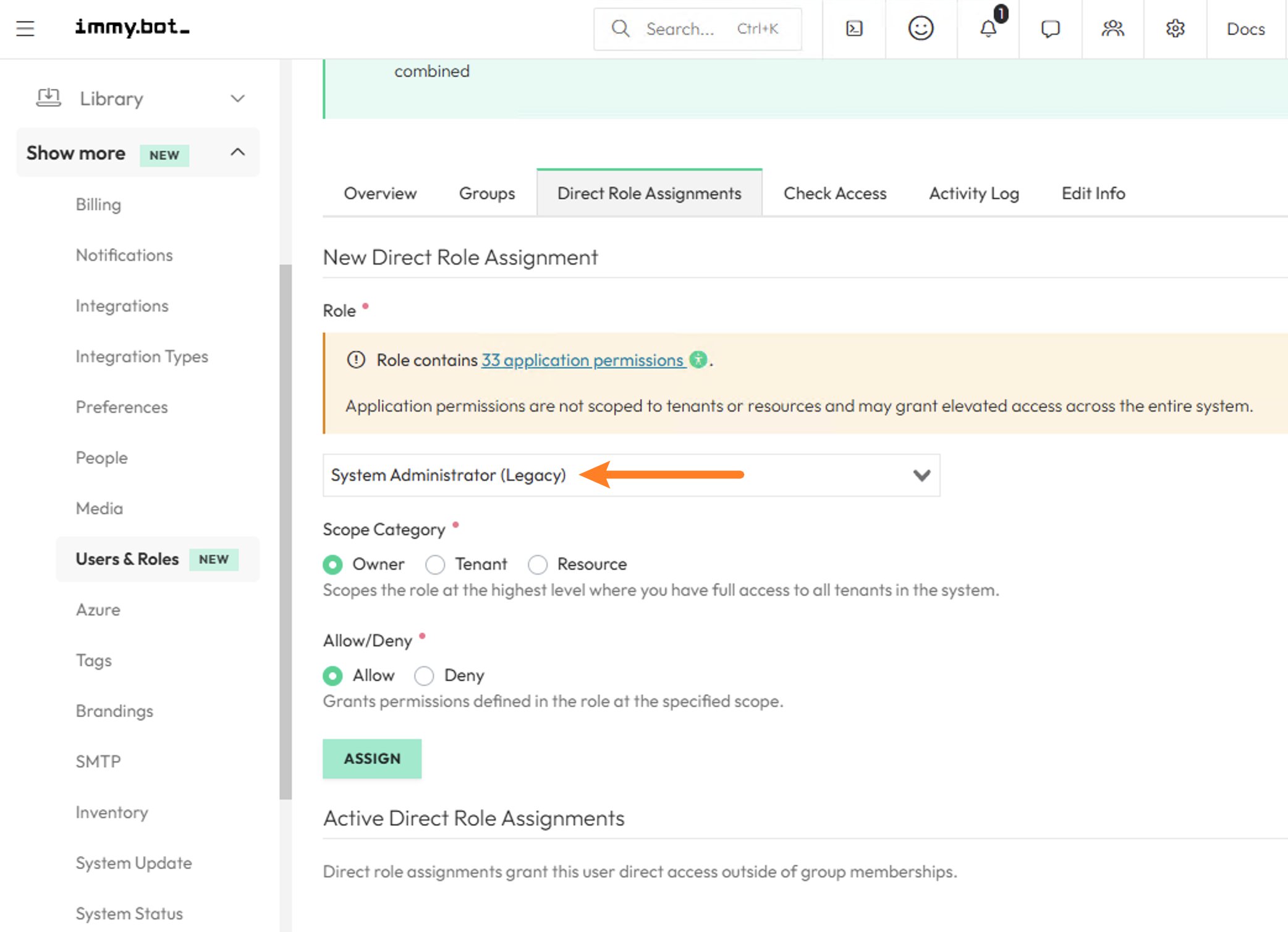
8. Go to **Show More → Users & Roles**, edit MSPilot API, switch to **Direct Role Assignments** tab, select:
* Role: System Administrator (Legacy)
* Scope Category: Owner
* Allow/Deny: Allow
9. Assign
7. Go to **Show More → Users & Roles**, add new user. Select **MSPilot** you just created from **From existing people** tab, create user.
8. Go to **Show More → Users & Roles**, edit MSPilot API, switch to **Direct Role Assignments** tab, select:
* Role: System Administrator (Legacy)
* Scope Category: Owner
* Allow/Deny: Allow
9. Assign
 Until this admin user exists, MSPilot can receive an Entra token and still fail the connection with a permission error. A Person without a User is not enough. A User without Admin cannot list tenants and computers or start software installs.
Don't map a working technician as this Person. If that person leaves or their ImmyBot access changes, the connection breaks.
## Connect ImmyBot
1. In MSPilot, open **Integrations** and choose **ImmyBot**.
2. Paste:
| Field in MSPilot | What you copied |
| ------------------------- | ---------------------------- |
| Instance subdomain | Hostname without `.immy.bot` |
| Microsoft Entra tenant ID | Directory (tenant) ID |
| Application client ID | Application (client) ID |
| Client secret | Client secret **Value** |
3. Click **Connect ImmyBot**.
MSPilot authenticates with Entra using client credentials, then reads tenants from your instance to confirm the app is authorized. You will not be redirected to a Microsoft login screen.
## After you connect
MSPilot syncs computers from ImmyBot into your clients.
* If you skipped a PSA, ImmyBot tenants are imported as clients first. Computers then land in those workspaces.
* If clients already came from a PSA, map each client to the ImmyBot tenant that owns its endpoint inventory.
Each ImmyBot tenant can map to only one MSPilot client. Computers that are not under a mapped tenant are skipped until you save that mapping.
On the client, use **ImmyBot mapping** to bind the tenant, then **Refresh devices** when you want that client's inventory updated immediately.
Until this admin user exists, MSPilot can receive an Entra token and still fail the connection with a permission error. A Person without a User is not enough. A User without Admin cannot list tenants and computers or start software installs.
Don't map a working technician as this Person. If that person leaves or their ImmyBot access changes, the connection breaks.
## Connect ImmyBot
1. In MSPilot, open **Integrations** and choose **ImmyBot**.
2. Paste:
| Field in MSPilot | What you copied |
| ------------------------- | ---------------------------- |
| Instance subdomain | Hostname without `.immy.bot` |
| Microsoft Entra tenant ID | Directory (tenant) ID |
| Application client ID | Application (client) ID |
| Client secret | Client secret **Value** |
3. Click **Connect ImmyBot**.
MSPilot authenticates with Entra using client credentials, then reads tenants from your instance to confirm the app is authorized. You will not be redirected to a Microsoft login screen.
## After you connect
MSPilot syncs computers from ImmyBot into your clients.
* If you skipped a PSA, ImmyBot tenants are imported as clients first. Computers then land in those workspaces.
* If clients already came from a PSA, map each client to the ImmyBot tenant that owns its endpoint inventory.
Each ImmyBot tenant can map to only one MSPilot client. Computers that are not under a mapped tenant are skipped until you save that mapping.
On the client, use **ImmyBot mapping** to bind the tenant, then **Refresh devices** when you want that client's inventory updated immediately.