> ## Documentation Index
> Fetch the complete documentation index at: https://docs.mspilot.io/llms.txt
> Use this file to discover all available pages before exploring further.
# NinjaOne
Connect NinjaOne with a **Web** API client app. MSPilot uses it to sync devices into your clients.
You need a NinjaOne administrator who can create API apps.
## Create a client app in NinjaOne
1. In NinjaOne, go to **Settings → Apps → API**.
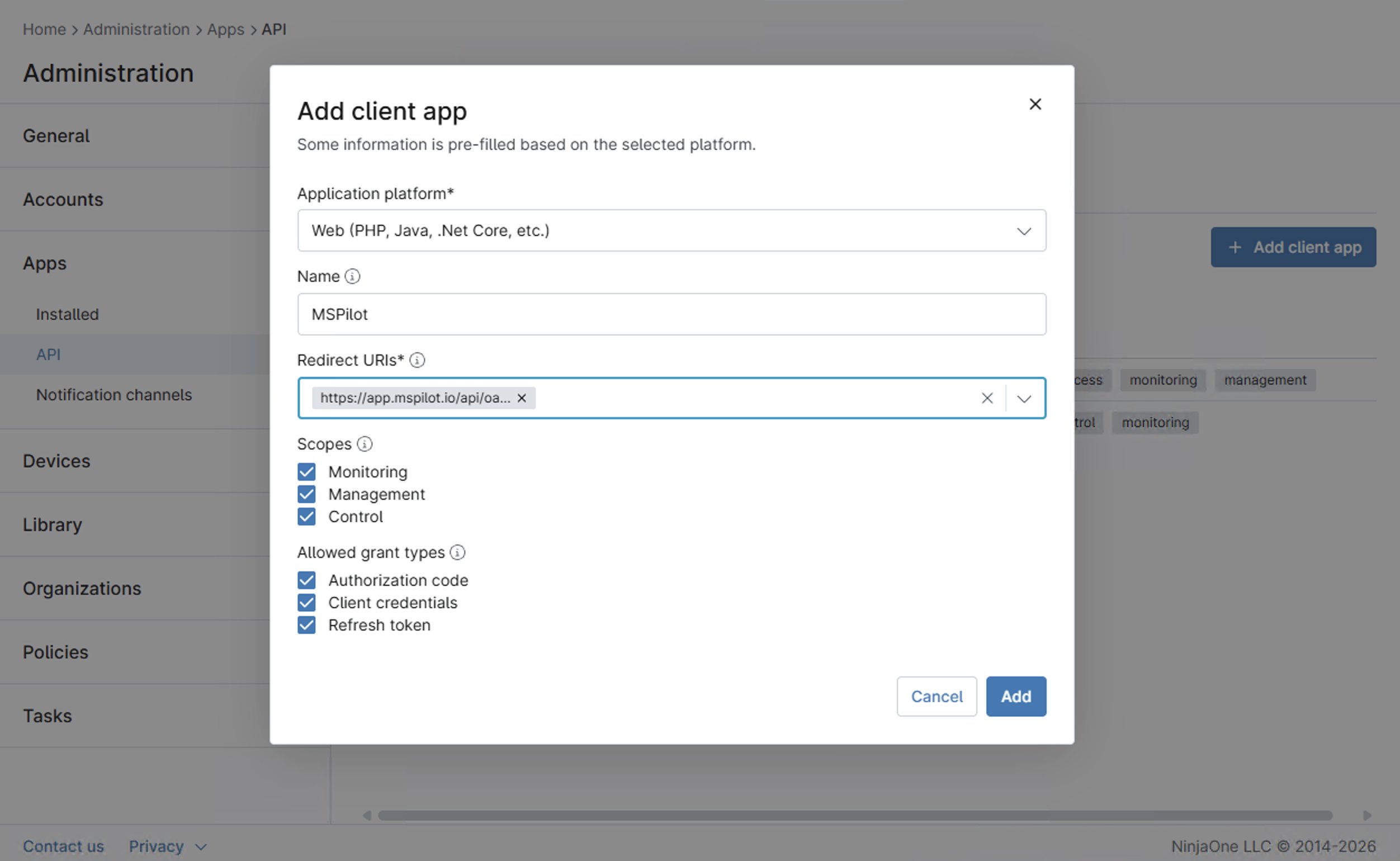
2. Open the **Client app IDs** tab and click **Add client app**.
3. Set **Application platform** to **Web (PHP, Java, .Net Core, etc.)**. Don't choose **API Services (machine-to-machine)**. MSPilot sends you through NinjaOne authorization, which that platform doesn't support.
4. Set **Name** to `MSPilot`.
5. Under **Redirect URIs**, add:
`https://app.mspilot.io/api/oauth/connections/ninjarmm/callback`
Use the hostname you actually sign in to. The URI must match exactly.
6. Under **Scopes**, select **Monitoring**, **Management**, and **Control**.
7. Under **Allowed grant types**, select **Authorization code**, **Client credentials**, and **Refresh token**. Authorization code is required to connect. Refresh token keeps the connection alive. Don't leave Refresh token unchecked.
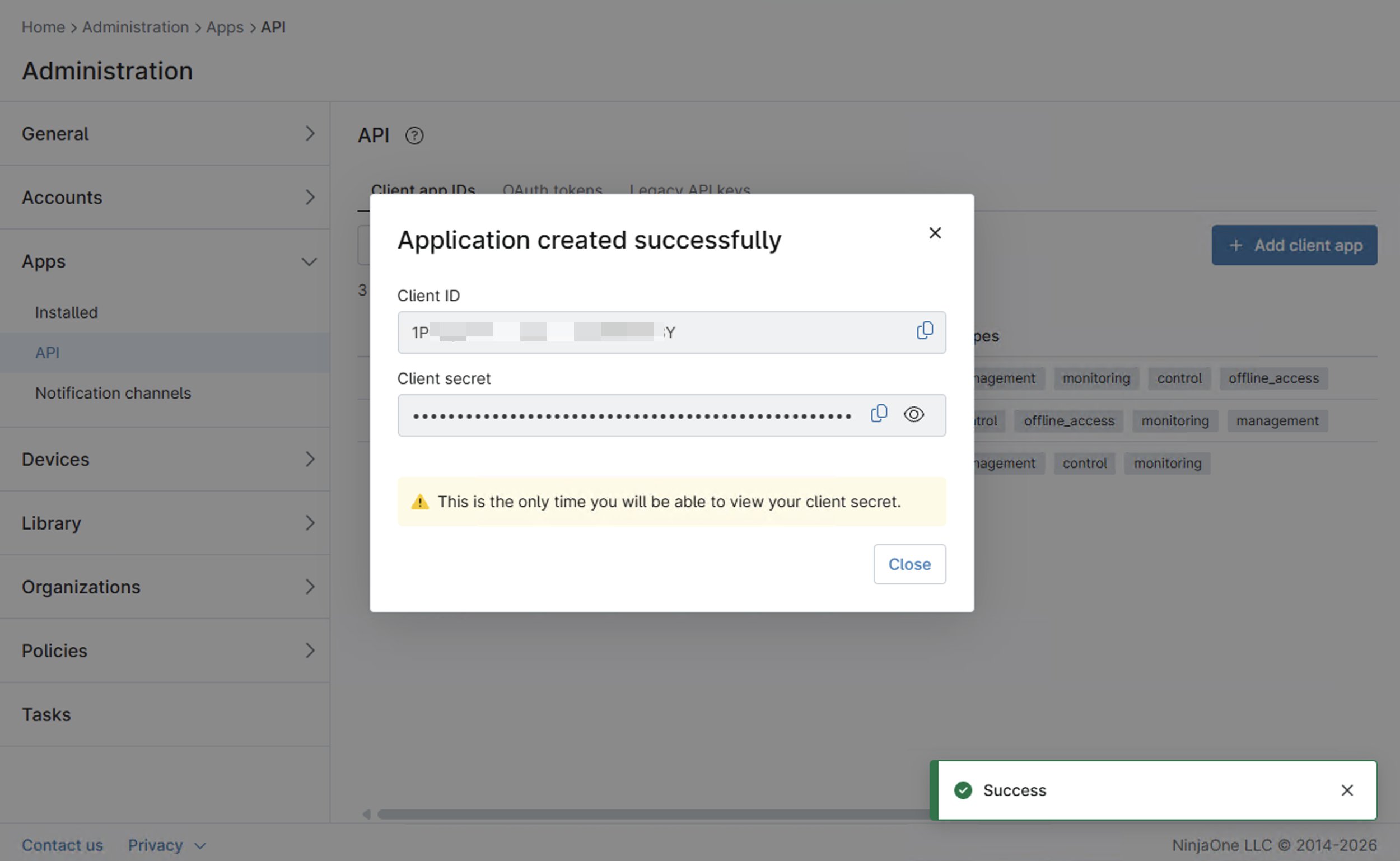
 8. Click **Add**. Copy the **Client ID** and **Client Secret** to a password manager before you close the dialog. NinjaOne typically won't show the secret again.
 ## Connect NinjaOne
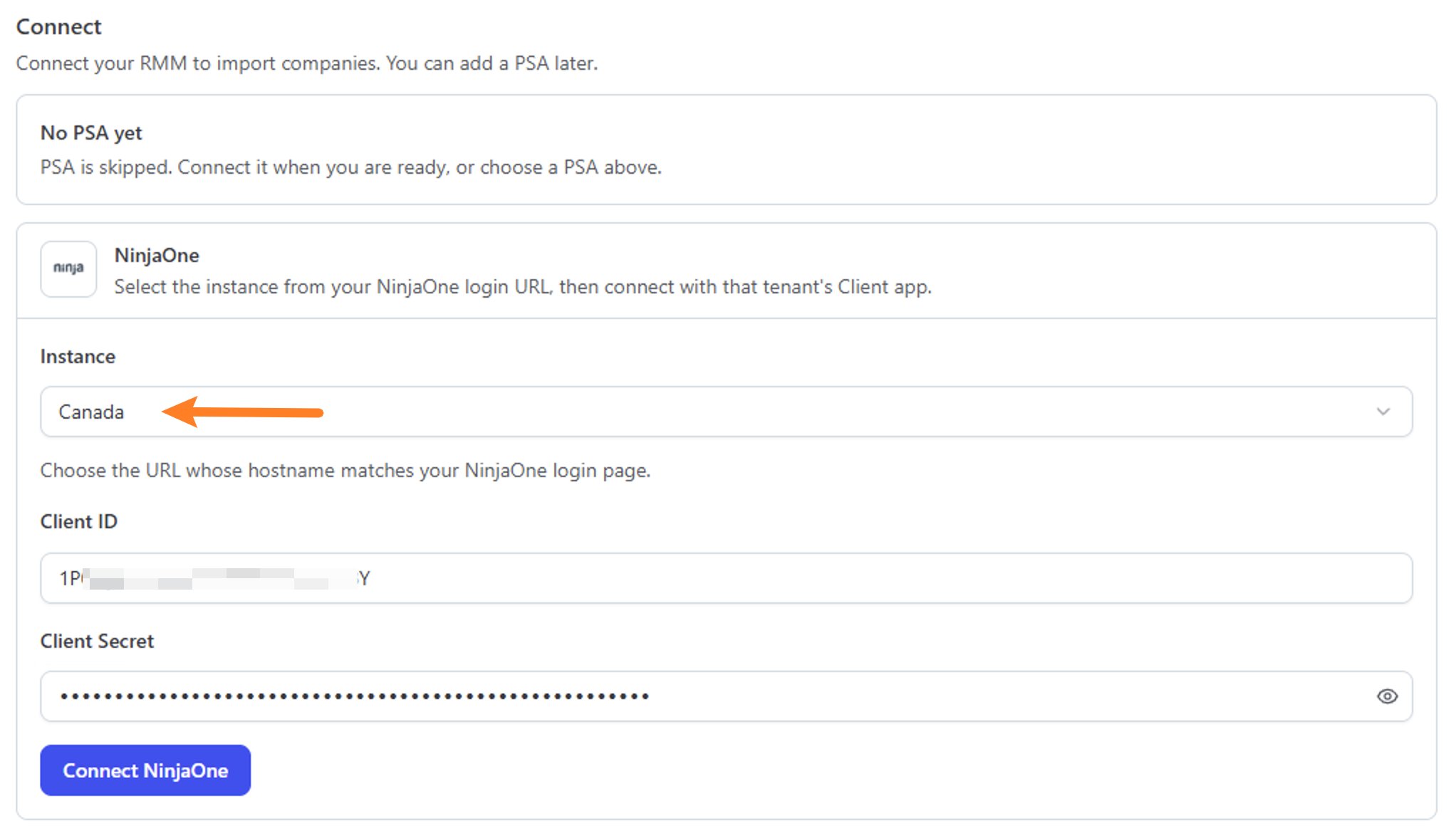
1. In MSPilot, open **Integrations** and choose **NinjaOne**.
2. Select the **Instance** that matches the URL you sign in to NinjaOne with — not the country your company is in. If you sign in at `https://ca.ninjarmm.com`, choose **Canada**.
| Name | URL |
| --------------- | ---------------------------------------------------- |
| United States | [https://app.ninjarmm.com](https://app.ninjarmm.com) |
| United States 2 | [https://us2.ninjarmm.com](https://us2.ninjarmm.com) |
| Europe | [https://eu.ninjarmm.com](https://eu.ninjarmm.com) |
| Canada | [https://ca.ninjarmm.com](https://ca.ninjarmm.com) |
| Oceania | [https://oc.ninjarmm.com](https://oc.ninjarmm.com) |
3. Paste **Client ID** and **Client Secret**.
4. Click **Connect NinjaOne**, then approve access in NinjaOne when you're redirected.
## Connect NinjaOne
1. In MSPilot, open **Integrations** and choose **NinjaOne**.
2. Select the **Instance** that matches the URL you sign in to NinjaOne with — not the country your company is in. If you sign in at `https://ca.ninjarmm.com`, choose **Canada**.
| Name | URL |
| --------------- | ---------------------------------------------------- |
| United States | [https://app.ninjarmm.com](https://app.ninjarmm.com) |
| United States 2 | [https://us2.ninjarmm.com](https://us2.ninjarmm.com) |
| Europe | [https://eu.ninjarmm.com](https://eu.ninjarmm.com) |
| Canada | [https://ca.ninjarmm.com](https://ca.ninjarmm.com) |
| Oceania | [https://oc.ninjarmm.com](https://oc.ninjarmm.com) |
3. Paste **Client ID** and **Client Secret**.
4. Click **Connect NinjaOne**, then approve access in NinjaOne when you're redirected.
 ## After you connect
MSPilot syncs devices from NinjaOne into your clients.
Map each client to the Ninja organization that should supply its device inventory. Each Ninja organization can map to only one client.
## After you connect
MSPilot syncs devices from NinjaOne into your clients.
Map each client to the Ninja organization that should supply its device inventory. Each Ninja organization can map to only one client.