Connect HaloPSA with a Client ID and Secret API application that logs in as an API-only agent. MSPilot uses it to import companies as clients, then keep contacts in sync.
You need a HaloPSA administrator who can create agents and API applications.
Create an API-only agent
Create this agent first. The API application logs in as this identity, and Halo only returns the companies this agent is allowed to see.
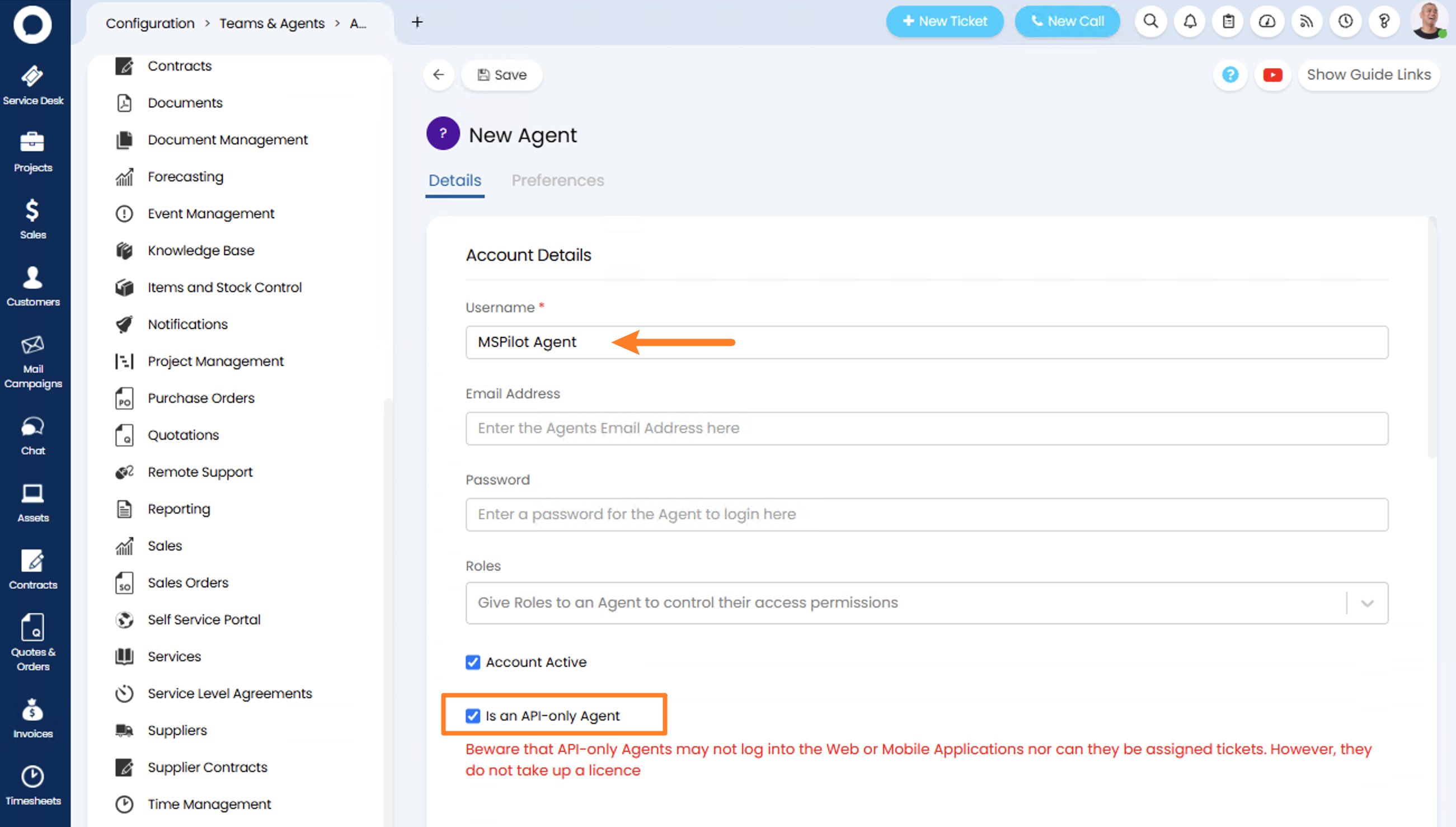
- Go to Configuration → Teams & Agents → Agents and click New.
- Set Username to
MSPilot Agent.
- Leave Account Active checked.
- Select Is an API-only Agent. This agent cannot sign in to Halo or be assigned tickets, and it does not use a license.
- Set Default Team. This list is unique to your Halo site. If No Default Team appears, choose that. Otherwise pick your main service desk team. Halo requires a value; you cannot skip it.
- Set Work Hours. If Default Working Hours or 24 Hours appears, use that. Otherwise pick any standard hours calendar your site already uses. API-only agents are not scheduled against tickets; this field only satisfies Halo’s required form.
- Click Save.
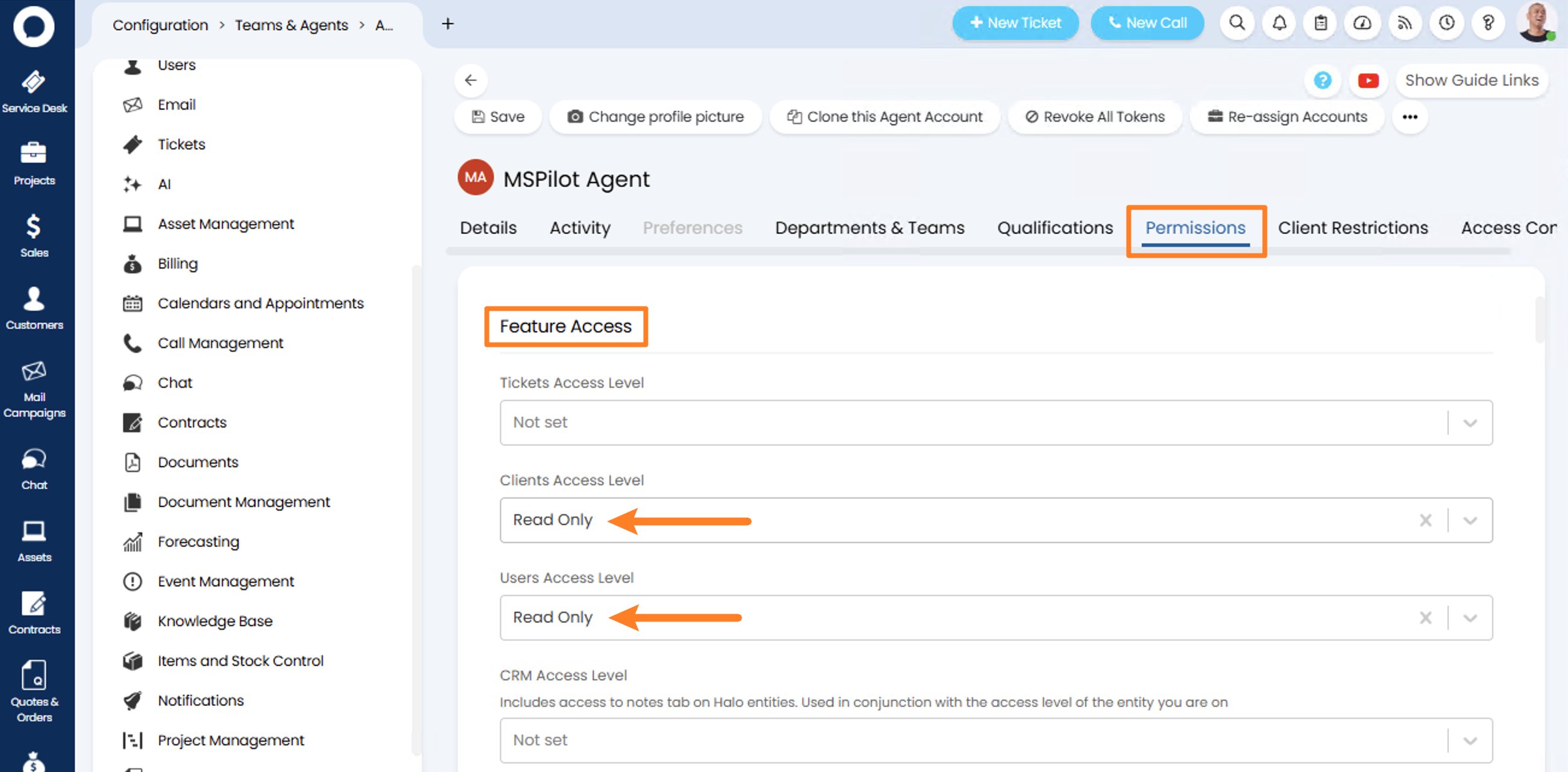
- Open the agent again, go to the Permissions tab. In the Feature Access section, set:
- Clients Access Level to Read Only
- Users Access Level to Read Only
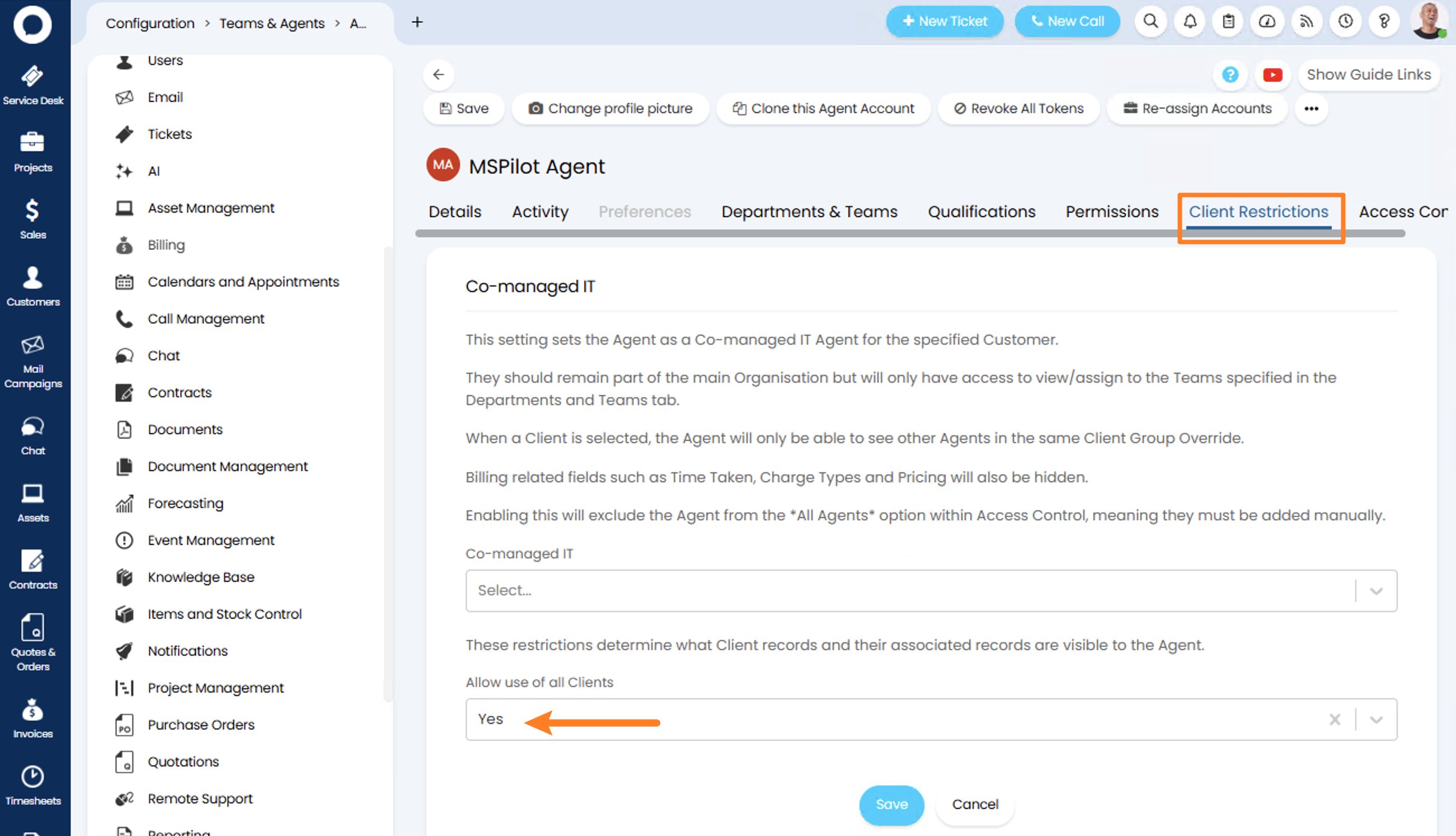
- Then go to Client Restrictions tab, and set:
- Allow use of all Clients to Yes
- Click Save.
Application permissions cannot go beyond this agent. If Clients access stays off, connecting fails with a client-read error even when the Client ID and Secret are correct.
Don’t use a working technician as this agent. If that person leaves or their teams change, the connection breaks or you only sync a subset of companies.
Create an API application
- Go to Configuration → Integrations → HaloPSA API → View Applications.
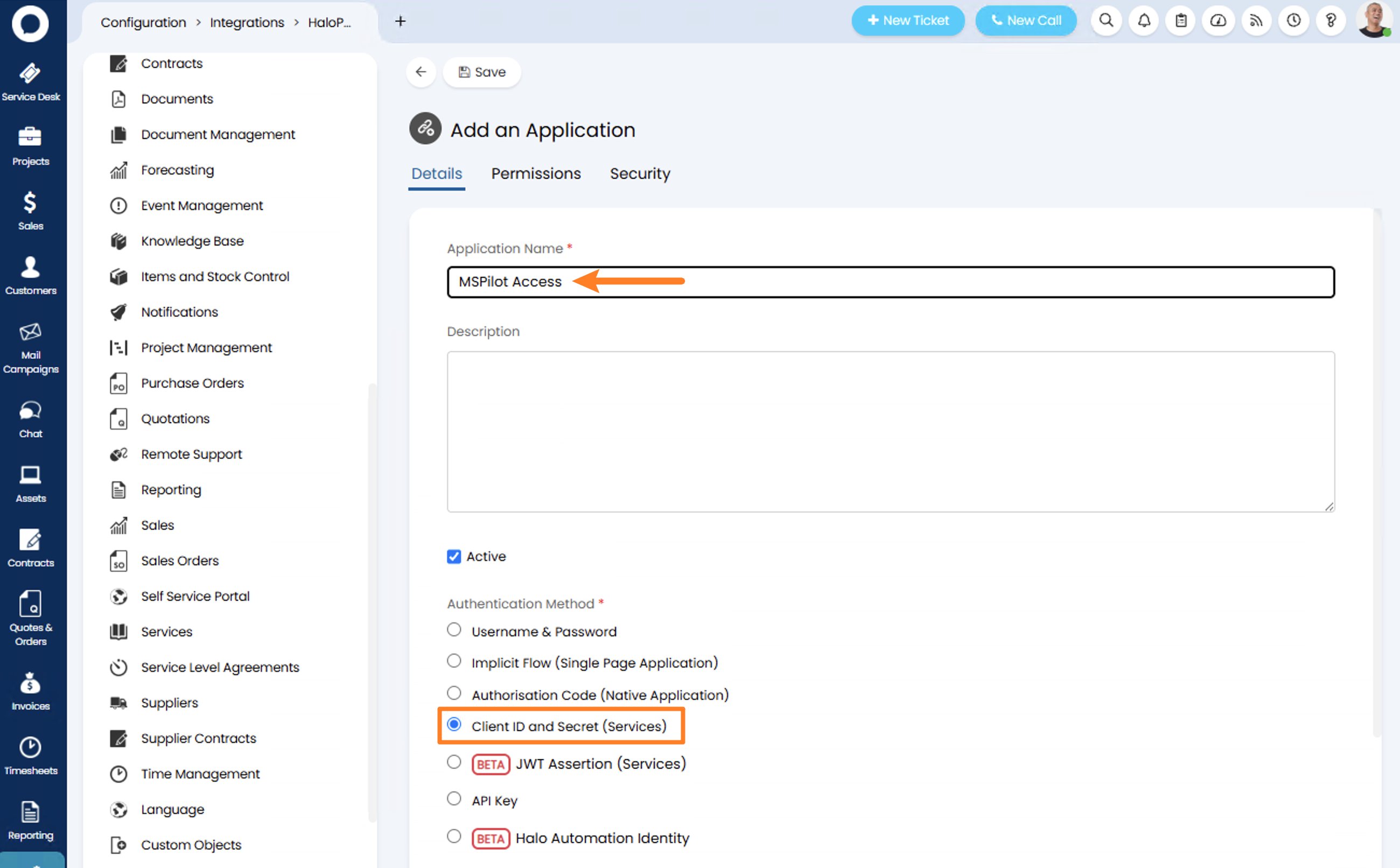
- Click New.
- Set Application Name to
MSPilot. Leave Active checked.
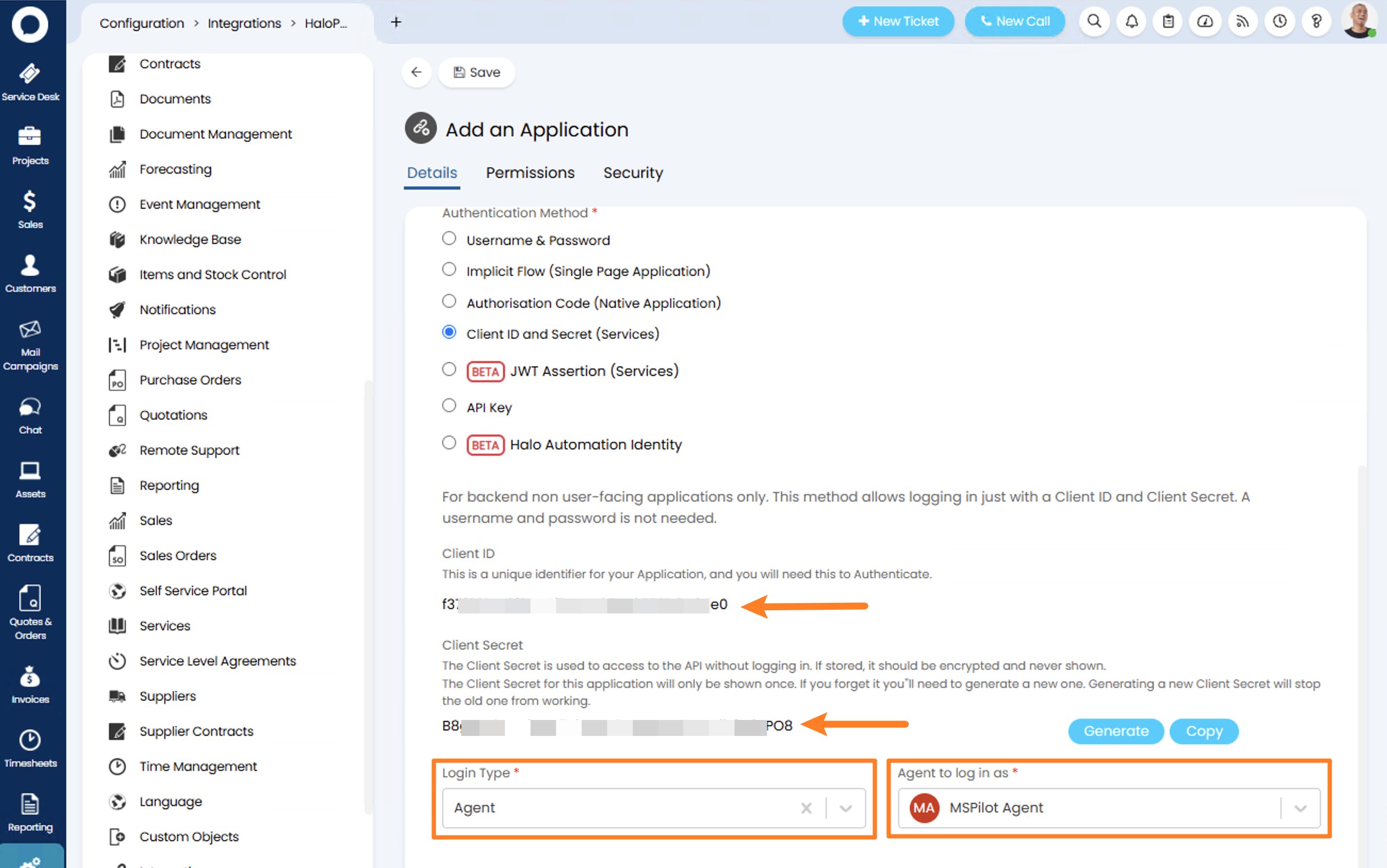
- Set Authentication Method to Client ID and Secret (Services).
- Set Login Type to Agent. Don’t choose Client or Supplier.
- Set Agent to log in as to MSPilot Agent.
- Copy Client ID and Client Secret to a password manager. The secret is shown once.
- Open Permissions and enable read:customers only. Leave others off.
- Click Save.
Connect HaloPSA
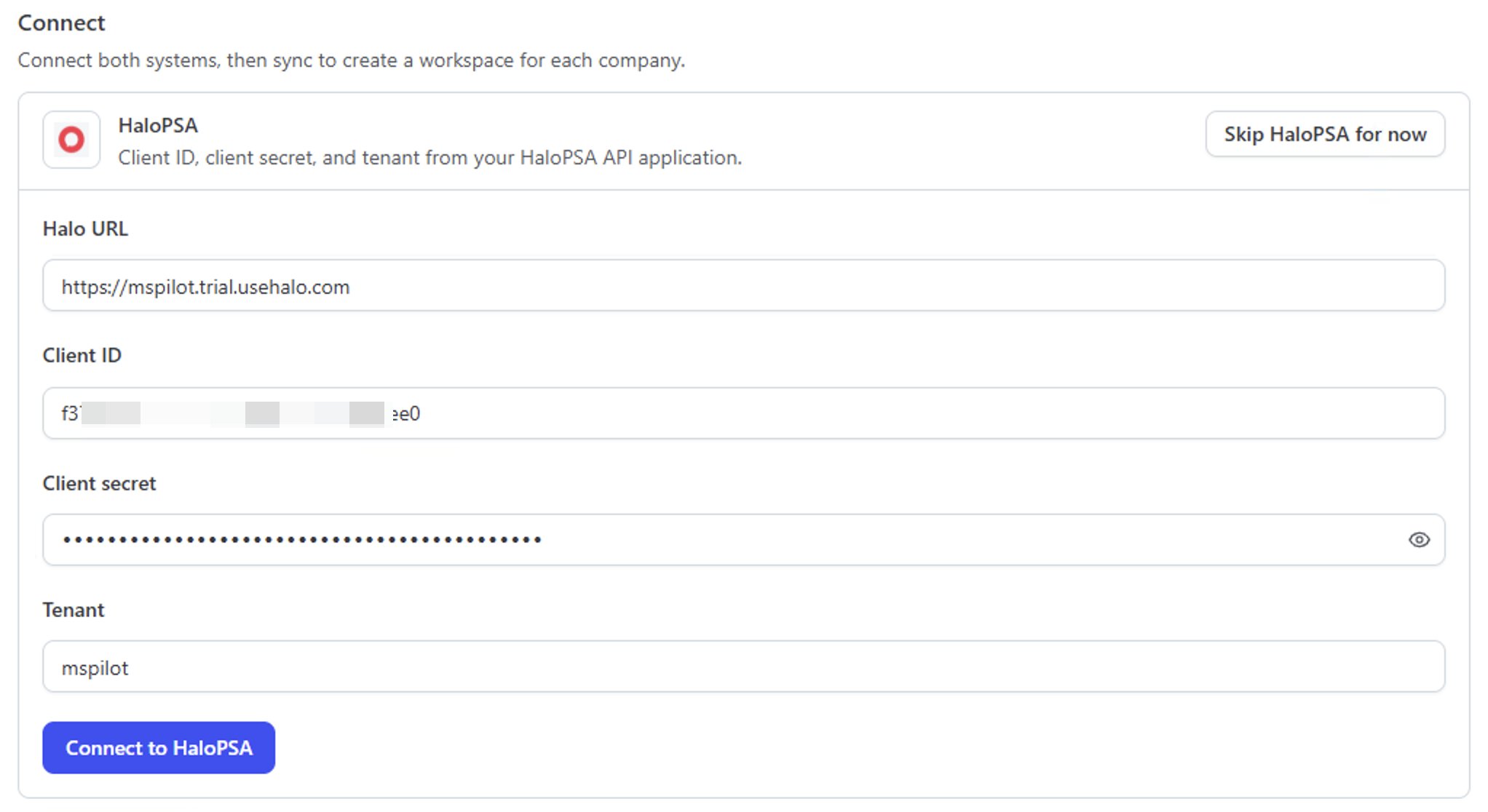
- In MSPilot, open Integrations and choose HaloPSA.
- Enter Halo URL as the address you sign in with, such as
https://yourcompany.halopsa.com. Don’t append /api.
- Paste Client ID and Client secret.
- If Halo API Details shows a Tenant value, enter it. Otherwise leave Tenant blank.
- Click Connect to HaloPSA.
After you connect
MSPilot imports HaloPSA companies as clients and syncs contacts onto those clients.
If you also connect an RMM, map each client’s devices to the matching HaloPSA company so inventory lands in the right client. Last modified on September 12, 2026