Connect ImmyBot with a Microsoft Entra app registration in the tenant your ImmyBot instance already uses to sign in. MSPilot uses it to sync tenants and computers into your clients. It does not run maintenance or install software in ImmyBot.You need an ImmyBot administrator, and a Microsoft Entra administrator who can create app registrations in that same tenant. Use a dedicated app named MSPilot. Don’t create it in a customer’s Entra tenant, and don’t reuse a technician’s existing app.ImmyBot does not issue its own API keys. Each MSP that connects MSPilot creates their own Entra app for their own ImmyBot instance — the same pattern as creating a NinjaOne client app, except the app lives in Entra instead of inside ImmyBot.Complete the Entra and ImmyBot authorization steps before you click Connect in MSPilot. A valid client ID and secret are not enough on their own.
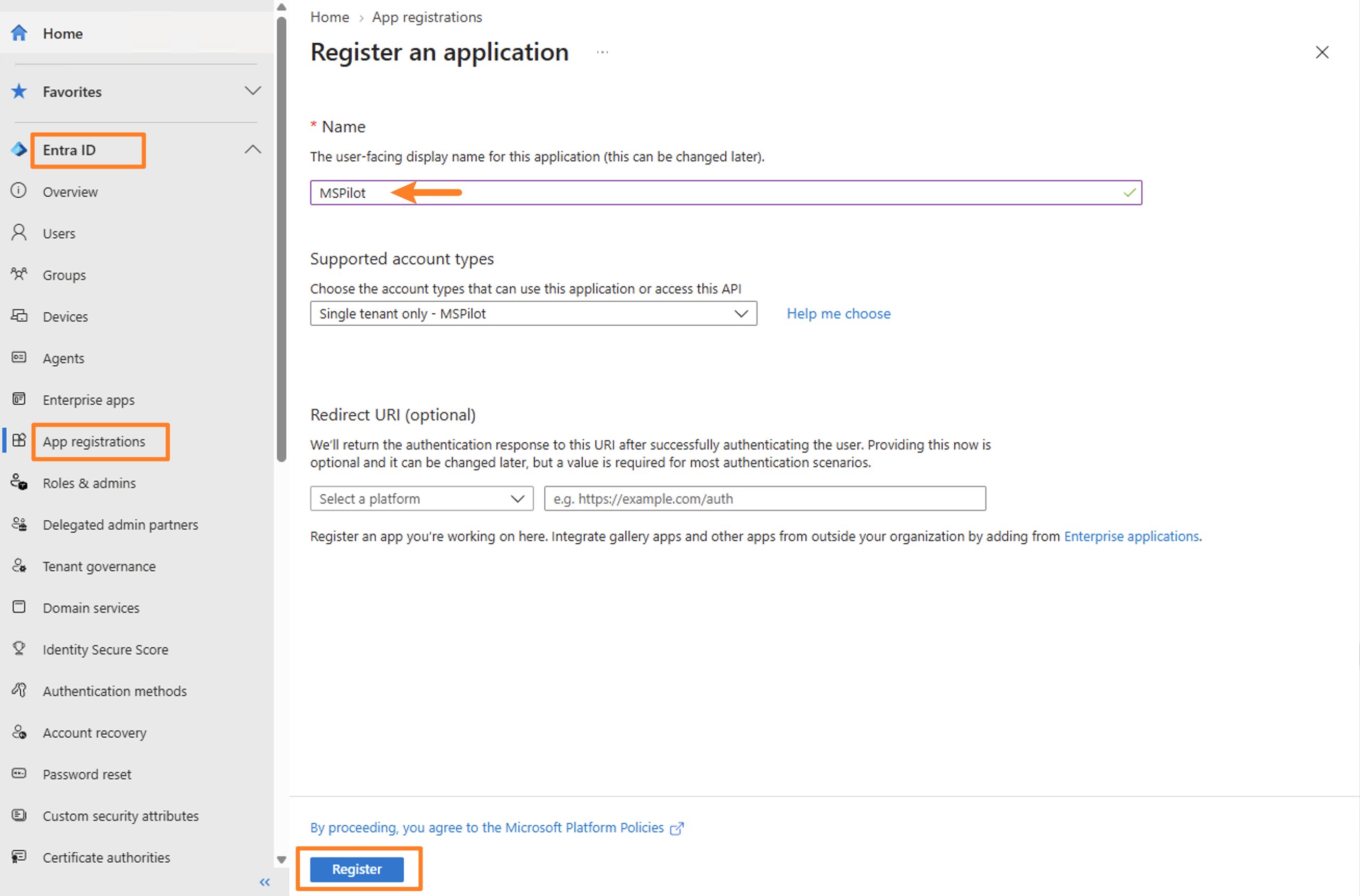
Create this app in the Microsoft tenant bound to your ImmyBot instance — usually the tenant you use to sign in to ImmyBot. That is your MSP tenant, not a customer tenant.
Leave Supported account types on Accounts in this organizational directory only (Single tenant). Don’t switch this to multi-tenant. This app only authenticates against your tenant so MSPilot can reach your ImmyBot instance.
Leave Redirect URI empty. MSPilot uses client credentials. There is no browser sign-in and no callback URL.
Click Register.
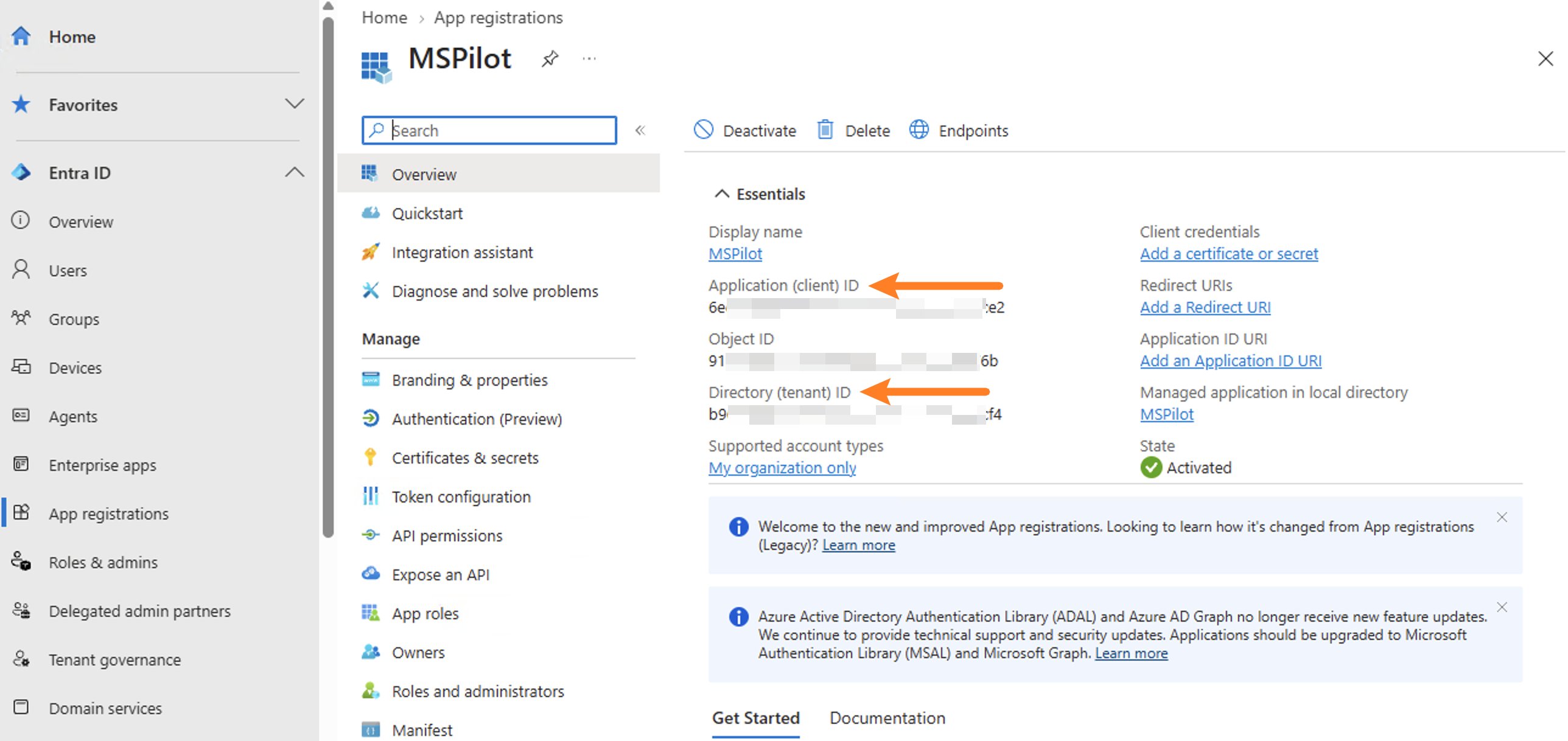
On the app Overview, copy these two values to a password manager:
Directory (tenant) ID → MSPilot Microsoft Entra tenant ID
Application (client) ID → MSPilot Application client ID
Leave the Object ID on this Overview page alone. That is the app registration object ID. ImmyBot needs a different Object ID from the Enterprise application, in the next section after the secret.
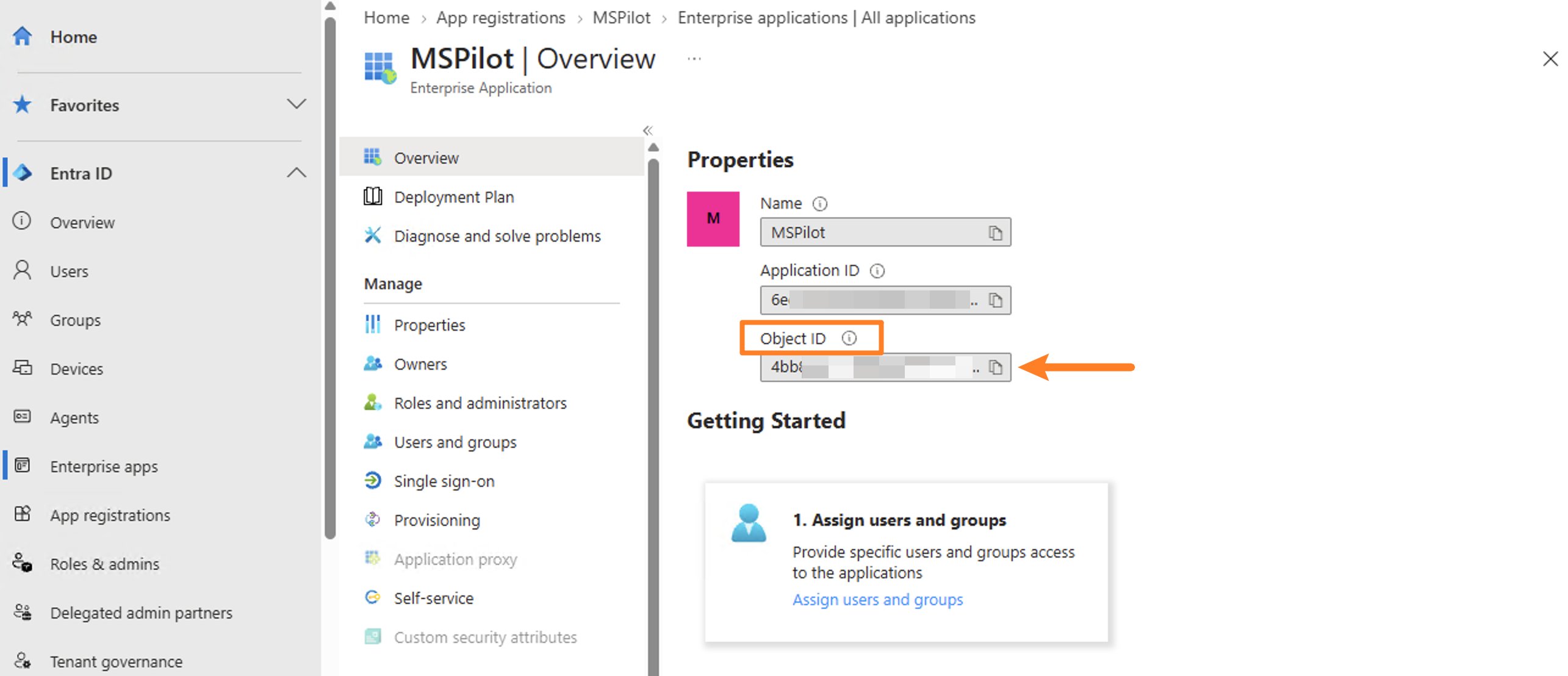
Goto Entra ID → Enterprise Apps. Select MSPilot you just created app in All Applications, copy Object ID to a password manager.
This Object ID is not the Application (client) ID, and not the Object ID on the App registration Overview. ImmyBot’s own docs call this out: the Enterprise app Object ID is the one that works.You will paste this into ImmyBot, not into MSPilot.
The Entra app is only an identity. ImmyBot accepts API calls from it only after that identity exists as a user with permission to list tenants and computers.
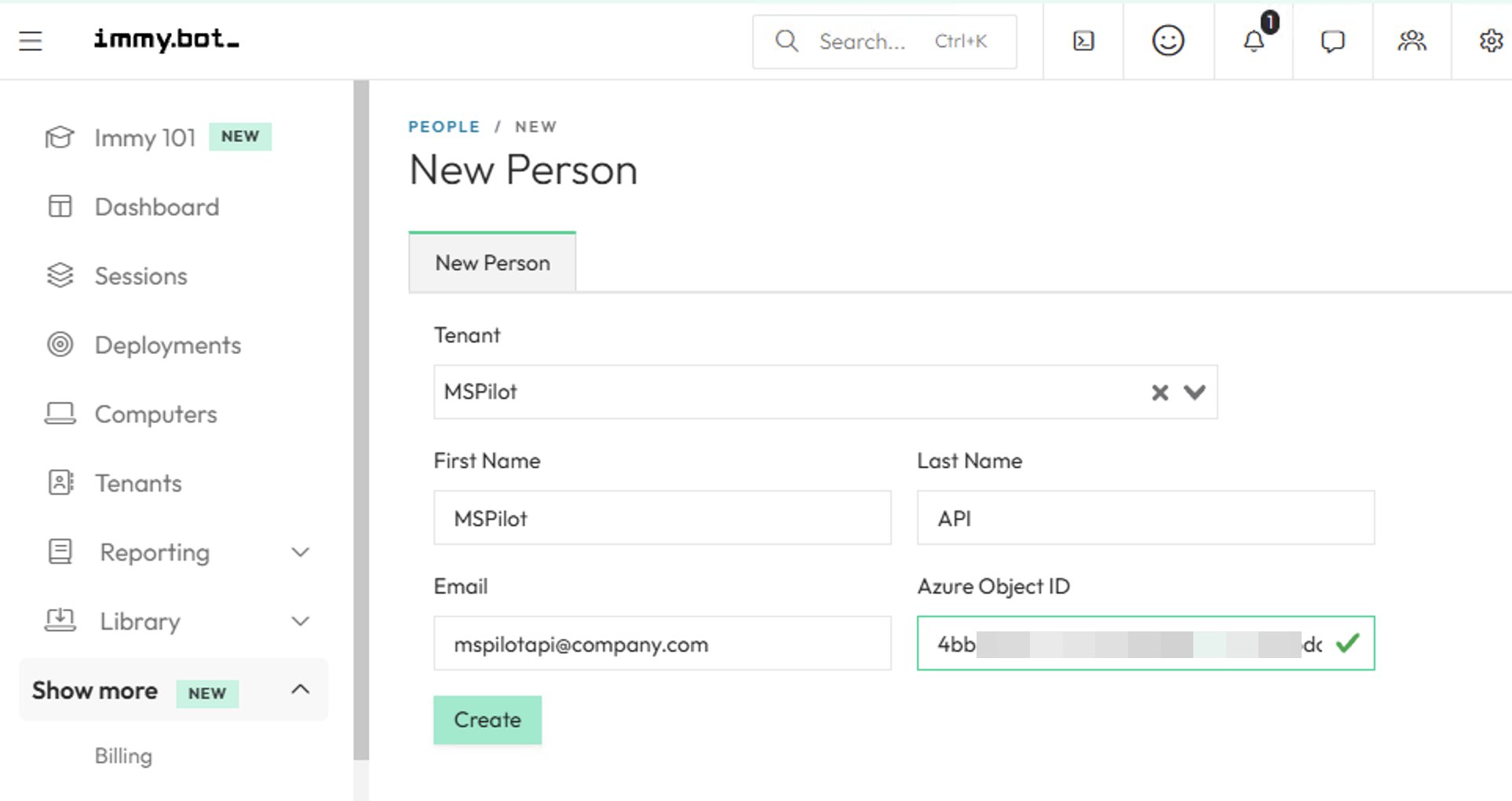
Set Tenant to your MSP tenant (the first / default tenant on the instance — not a customer tenant).
Enter a first name and last name you’ll recognize, such as MSPilot / API.
Enter a valid email. ImmyBot requires one; this Person will not sign in interactively.
Paste the Enterprise application Object ID into Azure Object ID. Some ImmyBot sites label this field AD External ID. It is the same field.
Create.
Go to Show More → Users & Roles, add new user. Select MSPilot you just created from From existing people tab, create user.
Go to Show More → Users & Roles, edit the MSPilot user, switch to Direct Role Assignments, and assign:
Role: MSPilot
Scope Category: Owner
Allow/Deny: Allow
Assign
Until this user exists with that role, MSPilot can receive an Entra token and still fail the connection with a permission error. A Person without a User is not enough. A User without View Tenants and View Computers cannot list inventory.Don’t map a working technician as this Person. If that person leaves or their ImmyBot access changes, the connection breaks.
MSPilot authenticates with Entra using client credentials, then reads tenants from your instance to confirm the app is authorized. You will not be redirected to a Microsoft login screen.
MSPilot syncs computers from ImmyBot into your clients.
If you skipped a PSA, ImmyBot tenants are imported as clients first. Computers then land in those clients.
If clients already came from a PSA, map each client to the ImmyBot tenant that owns its endpoint inventory.
Each ImmyBot tenant can map to only one MSPilot client. Computers that are not under a mapped tenant are skipped until you save that mapping.On the client, use ImmyBot mapping to bind the tenant, then Refresh devices when you want that client’s inventory updated immediately.
Connecting syncs computers. It does not install the agent.On the client, open Deployment. Under AI applications, tick the apps to install, then choose Copy script (mspilot-immybot-deploy.ps1). The copy is a short launcher: replace any older MSPilot Software saved in ImmyBot once. In ImmyBot, save it as Software named MSPilot install and enroll. In SCRIPT DETAILS, set Execution Context to System and Timeout to 5400 seconds. Deployment also gives a detection script that returns 1.0.0 when the selected apps and the agent are installed. Assign the Software to the target Windows devices, then run maintenance. When Claude Desktop is included, keep a user signed in during the run, and restart Windows if the job reports reboot_required=true.The gateway matches the machine by SMBIOS serial because ImmyBot does not store a computer id on the endpoint. You do not schedule a pull job; the agent schedules its own. See Install.MSPilot’s ImmyBot installer is Windows only. While ImmyBot is the connected RMM, Deployment turns off the macOS choice and shows MSPilot’s ImmyBot installer is Windows only. While ImmyBot is connected, Deployment offers neither the Mac script nor the MDM profile.
Last modified on September 29, 2026
{"docsConfig":{"theme":"mint","$schema":"https://mintlify.com/docs.json","name":"MSPilot","description":"MSPilot is the control plane an MSP uses to run Claude Desktop and ChatGPT for its clients through one governed gateway.","colors":{"primary":"#3d50f5","light":"#3369ff","dark":"#3d50f5"},"logo":{"light":"https://mintcdn.com/mspilot/AAn2JlntAuPaPJPu/logo/light.svg?fit=max\u0026auto=format\u0026n=AAn2JlntAuPaPJPu\u0026q=85\u0026s=5d974cf4d201cc0b6016cea2c27854cf","dark":"https://mintcdn.com/mspilot/AAn2JlntAuPaPJPu/logo/dark.svg?fit=max\u0026auto=format\u0026n=AAn2JlntAuPaPJPu\u0026q=85\u0026s=48fd0f078e5729ad5061066dee2d17bc"},"favicon":"https://mintcdn.com/mspilot/AAn2JlntAuPaPJPu/favicon.svg?fit=max\u0026auto=format\u0026n=AAn2JlntAuPaPJPu\u0026q=85\u0026s=73915232def6f97d5b9810871ae35e2c","appearance":{"default":"system"},"background":{"color":{"light":"#ffffff","dark":"#17181c"}},"navbar":{"links":[{"href":"mailto:support@mspilot.io","label":"Support"}],"primary":{"type":"button","label":"Dashboard","href":"https://app.mspilot.io"}},"footer":{"links":[{"header":"Product","items":[{"label":"Dashboard","href":"https://app.mspilot.io"},{"label":"Quickstart","href":"/quickstart"},{"label":"FAQ","href":"/faq"}]},{"header":"Trust","items":[{"label":"Trust center","href":"/trust/compliance"},{"label":"Privacy","href":"https://app.mspilot.io/privacy"},{"label":"Terms","href":"https://app.mspilot.io/terms"},{"label":"Cookies","href":"https://app.mspilot.io/cookies"}]},{"header":"Support","items":[{"label":"Email support","href":"mailto:support@mspilot.io"}]}]},"search":{"prompt":"Search the MSPilot docs"},"seo":{"organization":{"name":"MSPilot","url":"https://mspilot.io"},"indexing":"navigable"},"icons":{"library":"lucide"},"styling":{"codeblocks":"system","latex":true},"integrations":{"telemetry":{"enabled":true}},"errors":{"404":{"redirect":false,"title":"Page not found","description":"That page is not in the MSPilot docs. [Back to the introduction](/) or [email support](mailto:support@mspilot.io)."}},"contextual":{"options":["copy","view","assistant","chatgpt","claude","grok"],"display":"header"},"metadata":{"timestamp":true},"markdown":{"instructions":"MSPilot enrolls technician Windows machines and Apple Silicon Macs so Claude Desktop and ChatGPT run through one governed gateway. Seat words are standard seat and power seat. ConnectWise Manage imports clients and contacts, with optional configuration inventory when no RMM is connected. HIPAA is not a self-serve switch. Mode Switcher is mspilot-mode.exe for the MSP's own Windows machines."},"navigation":{"pages":[]}},"deployment":{"deploymentMetadataValue":{"subdomain":"mspilot","hasAudioNarration":false,"actualSubdomain":"mspilot","customDomains":["docs.mspilot.io"],"gitSource":{"type":"github","owner":"personabo-technologies","repo":"mspilot-docs","deployBranch":"main","contentDirectory":"","isPrivate":true,"mountPath":"","label":""},"chroma":{"latestBuiltDeploymentHistoryId":"6ad64b23a4240b47121b5967","collectionId":"1262500b-6b78-4c10-b181-aab8d97f7f08","liveDeploymentHistoryId":"6ad64b23a4240b47121b5967","schemaVersion":"v3"},"entitlements":{"AI_CHAT":{"status":"DISABLED"},"WEB_MCP":{"status":"DISABLED"}},"buildId":"6ad64b23a4240b47121b5967","clientVersion":"0.0.3964","searchFilterCounts":[{"language":"default","tag":"Guides","count":23},{"language":"default","tag":"Integrations","count":11},{"language":"default","tag":"Agent","count":10},{"language":"default","tag":"RMM","count":7},{"language":"default","tag":"Client setup","count":6},{"language":"default","tag":"Getting started","count":5},{"language":"default","tag":"PSA","count":3},{"language":"default","tag":"Enrollment","count":1},{"language":"default","tag":"MDM","count":1},{"language":"default","tag":"Seats","count":1}]},"assistantConfig":{"enableAskAiButton":false,"enableStarterQuestions":false,"enableContextualStarterQuestions":false,"enableAskAiSearchBar":true},"hasChatPermissions":false,"hasWebMcpPermissions":false,"toggles":[{"name":"kill-isr","enabled":true,"variant":{"name":"disabled","enabled":false,"feature_enabled":true},"impressionData":false},{"name":"agent-mintlify-slack","enabled":true,"variant":{"name":"disabled","enabled":false,"feature_enabled":true},"impressionData":false},{"name":"editor-v7-file-tree","enabled":true,"variant":{"name":"disabled","enabled":false,"feature_enabled":true},"impressionData":false},{"name":"agent-integrations-settings","enabled":true,"variant":{"name":"disabled","enabled":false,"feature_enabled":true},"impressionData":false},{"name":"automations-pr-grouping","enabled":true,"variant":{"name":"disabled","enabled":false,"feature_enabled":true},"impressionData":false},{"name":"custom-prefix","enabled":true,"variant":{"name":"disabled","enabled":false,"feature_enabled":true},"impressionData":false},{"name":"analytics-v7","enabled":true,"variant":{"name":"disabled","enabled":false,"feature_enabled":true},"impressionData":false},{"name":"user-flows-analytics","enabled":true,"variant":{"name":"disabled","enabled":false,"feature_enabled":true},"impressionData":false},{"name":"no-publish-flow","enabled":true,"variant":{"name":"disabled","enabled":false,"feature_enabled":true},"impressionData":false},{"name":"workos-onboarding","enabled":true,"variant":{"name":"disabled","enabled":false,"feature_enabled":true},"impressionData":false},{"name":"llms-txt-v2","enabled":true,"variant":{"name":"disabled","enabled":false,"feature_enabled":true},"impressionData":false},{"name":"pause-universal-search-reconcile","enabled":true,"variant":{"name":"disabled","enabled":false,"feature_enabled":true},"impressionData":false},{"name":"snapshot-serving-live","enabled":true,"variant":{"name":"disabled","enabled":false,"feature_enabled":true},"impressionData":false},{"name":"stripTemperatureMiddleware","enabled":true,"variant":{"name":"disabled","enabled":false,"feature_enabled":true},"impressionData":false},{"name":"per-site-search-delta","enabled":true,"variant":{"name":"disabled","enabled":false,"feature_enabled":true},"impressionData":false},{"name":"support-platform-pylon-zendesk","enabled":true,"variant":{"name":"disabled","enabled":false,"feature_enabled":true},"impressionData":false},{"name":"snapshot-serving","enabled":true,"variant":{"name":"disabled","enabled":false,"feature_enabled":true},"impressionData":false},{"name":"instant-rollback","enabled":true,"variant":{"name":"disabled","enabled":false,"feature_enabled":true},"impressionData":false},{"name":"granular-notifications-server","enabled":true,"variant":{"name":"disabled","enabled":false,"feature_enabled":true},"impressionData":false},{"name":"granular-notifications","enabled":true,"variant":{"name":"disabled","enabled":false,"feature_enabled":true},"impressionData":false},{"name":"editor-private-page-search","enabled":true,"variant":{"name":"disabled","enabled":false,"feature_enabled":true},"impressionData":false},{"name":"automations-fable","enabled":true,"variant":{"name":"disabled","enabled":false,"feature_enabled":true},"impressionData":false},{"name":"fixed-ai-action-pricing","enabled":true,"variant":{"name":"disabled","enabled":false,"feature_enabled":true},"impressionData":false},{"name":"automation-resolve-merge-conflict","enabled":true,"variant":{"name":"disabled","enabled":false,"feature_enabled":true},"impressionData":false},{"name":"scoped-publishing","enabled":true,"variant":{"name":"disabled","enabled":false,"feature_enabled":true},"impressionData":false},{"name":"mintql","enabled":true,"variant":{"name":"disabled","enabled":false,"feature_enabled":true},"impressionData":false},{"name":"page-level-analytics","enabled":true,"variant":{"name":"disabled","enabled":false,"feature_enabled":true},"impressionData":false},{"name":"editor-version-history-v2","enabled":true,"variant":{"name":"disabled","enabled":false,"feature_enabled":true},"impressionData":false},{"name":"editor-nav-generations","enabled":true,"variant":{"name":"disabled","enabled":false,"feature_enabled":true},"impressionData":false},{"name":"billing-page-v2","enabled":true,"variant":{"name":"disabled","enabled":false,"feature_enabled":true},"impressionData":false},{"name":"workspace-projects","enabled":true,"variant":{"name":"disabled","enabled":false,"feature_enabled":true},"impressionData":false},{"name":"assistant-v5","enabled":true,"variant":{"name":"disabled","enabled":false,"feature_enabled":true},"impressionData":false},{"name":"byok-sep-25","enabled":true,"variant":{"name":"disabled","enabled":false,"feature_enabled":true},"impressionData":false},{"name":"fork-pr-previews","enabled":true,"variant":{"name":"disabled","enabled":false,"feature_enabled":true},"impressionData":false},{"name":"revalidation-jwt","enabled":true,"variant":{"name":"disabled","enabled":false,"feature_enabled":true},"impressionData":false},{"name":"vite-origin","enabled":true,"variant":{"name":"disabled","enabled":false,"feature_enabled":true},"impressionData":false},{"name":"editor-agent-model-picker","enabled":true,"variant":{"name":"disabled","enabled":false,"feature_enabled":true},"impressionData":false},{"name":"billing-updated-9-15","enabled":true,"variant":{"name":"disabled","enabled":false,"feature_enabled":true},"impressionData":false},{"name":"hobby-abuse-scan","enabled":true,"variant":{"name":"disabled","enabled":false,"feature_enabled":true},"impressionData":false},{"name":"dashboard-inbox","enabled":true,"variant":{"name":"disabled","enabled":false,"feature_enabled":true},"impressionData":false}],"isAtlas":false,"googleFontsInlined":false},"customCss":[{"filePath":"style.css","content":":root{--ms-font:-apple-system, BlinkMacSystemFont, \"Segoe UI\", Roboto, \"Helvetica Neue\", Arial, \"PingFang SC\",\n \"Hiragino Sans GB\", \"Microsoft YaHei\", \"Noto Sans CJK SC\", \"Noto Sans\", sans-serif;--ms-mono:ui-monospace, SFMono-Regular, Menlo, Monaco, Consolas, \"Liberation Mono\", \"Courier New\", monospace;--ms-radius:0.625rem}#content-area,#footer,#navbar,#sidebar,body{font-family:var(--ms-font)}#content code,code,pre{font-family:var(--ms-mono)}#navbar{border-bottom:1px solid #d1d9e0}html.dark #navbar,html[data-theme=dark] #navbar{border-bottom-color:#3d444d}.rounded-xl,[data-component-name=card],button{border-radius:var(--ms-radius)}"}],"page":{"pagePath":"integrations/rmm/immy-bot","slug":"/integrations/rmm/immy-bot","pageMetadata":{"title":"ImmyBot","description":null,"href":"/integrations/rmm/immy-bot"},"pageType":"default","mdx":{"mdxSource":{"compiledSource":"\"use strict\";const{Fragment:_Fragment,jsx:_jsx,jsxs:_jsxs}=arguments[0];const{useMDXComponents:_provideComponents}=arguments[0];function _createMdxContent(props){const _components={a:`a`,code:`code`,li:`li`,ol:`ol`,p:`p`,strong:`strong`,tbody:`tbody`,td:`td`,th:`th`,thead:`thead`,tr:`tr`,ul:`ul`,..._provideComponents(),...props.components},{Frame,Heading,OptimizedImage,Table}=_components;if(!Frame)_missingMdxReference(`Frame`,true);if(!Heading)_missingMdxReference(`Heading`,true);if(!OptimizedImage)_missingMdxReference(`OptimizedImage`,true);if(!Table)_missingMdxReference(`Table`,true);return _jsxs(_Fragment,{children:[_jsxs(_components.p,{children:[`Connect ImmyBot with a `,_jsx(_components.strong,{children:`Microsoft Entra app registration`}),` in the tenant your ImmyBot instance already uses to sign in. MSPilot uses it to sync tenants and computers into your clients. It does not run maintenance or install software in ImmyBot.`]}),`\n`,_jsxs(_components.p,{children:[`You need an ImmyBot administrator, and a Microsoft Entra administrator who can create app registrations in `,_jsx(_components.strong,{children:`that same tenant`}),`. Use a dedicated app named `,_jsx(_components.code,{children:`MSPilot`}),`. Don’t create it in a customer’s Entra tenant, and don’t reuse a technician’s existing app.`]}),`\n`,_jsxs(_components.p,{children:[`ImmyBot does not issue its own API keys. Each MSP that connects MSPilot creates `,_jsx(_components.strong,{children:`their own`}),` Entra app for `,_jsx(_components.strong,{children:`their own`}),` ImmyBot instance — the same pattern as creating a NinjaOne client app, except the app lives in Entra instead of inside ImmyBot.`]}),`\n`,_jsxs(_components.p,{children:[`Complete the Entra and ImmyBot authorization steps `,_jsx(_components.strong,{children:`before`}),` you click Connect in MSPilot. A valid client ID and secret are not enough on their own.`]}),`\n`,_jsx(Heading,{level:`2`,id:`find-your-instance-subdomain`,children:`Find your instance subdomain`}),`\n`,_jsxs(_components.ol,{children:[`\n`,_jsx(_components.li,{children:`Sign in to ImmyBot as you normally do.`}),`\n`,_jsxs(_components.li,{children:[`Copy the hostname. For `,_jsx(_components.code,{children:`https://acme.immy.bot`}),`, the subdomain is `,_jsx(_components.code,{children:`acme`}),`.`]}),`\n`,_jsxs(_components.li,{children:[`Enter only that subdomain in MSPilot. Don’t include `,_jsx(_components.code,{children:`https://`}),`, and don’t include `,_jsx(_components.code,{children:`.immy.bot`}),`.`]}),`\n`]}),`\n`,_jsx(_components.p,{children:`This is the instance MSPilot will call. If the subdomain is wrong, Entra may still issue a token, but the connection to ImmyBot fails.`}),`\n`,_jsx(Heading,{level:`2`,id:`register-an-app-in-microsoft-entra`,children:`Register an app in Microsoft Entra`}),`\n`,_jsx(_components.p,{children:`Create this app in the Microsoft tenant bound to your ImmyBot instance — usually the tenant you use to sign in to ImmyBot. That is your MSP tenant, not a customer tenant.`}),`\n`,_jsxs(_components.ol,{children:[`\n`,_jsxs(_components.li,{children:[`Open `,_jsx(_components.a,{href:`https://entra.microsoft.com`,children:`Microsoft Entra admin center`}),` and go to `,_jsx(_components.strong,{children:`Entra ID → App registrations`}),`.`]}),`\n`,_jsxs(_components.li,{children:[`Click `,_jsx(_components.strong,{children:`New registration`}),`.`]}),`\n`,_jsxs(_components.li,{children:[`Set `,_jsx(_components.strong,{children:`Name`}),` to `,_jsx(_components.code,{children:`MSPilot`}),`.`]}),`\n`,_jsxs(_components.li,{children:[`Leave `,_jsx(_components.strong,{children:`Supported account types`}),` on `,_jsx(_components.strong,{children:`Accounts in this organizational directory only (Single tenant)`}),`. Don’t switch this to multi-tenant. This app only authenticates against your tenant so MSPilot can reach your ImmyBot instance.`]}),`\n`,_jsxs(_components.li,{children:[`Leave `,_jsx(_components.strong,{children:`Redirect URI`}),` empty. MSPilot uses client credentials. There is no browser sign-in and no callback URL.`]}),`\n`,_jsxs(_components.li,{children:[`Click `,_jsx(_components.strong,{children:`Register`}),`.`,`\n`,_jsx(Frame,{children:_jsx(OptimizedImage,{src:`https://mintcdn.com/mspilot/Gk07CKMjACRwfcU1/images/rmm/immybot/register-an-application.png?fit=max\u0026auto=format\u0026n=Gk07CKMjACRwfcU1\u0026q=85\u0026s=752c1f0e4fc762067fbaace0de5dc941`,alt:`Register An Application`,\"data-og-width\":`2614`,width:`2614`,\"data-og-height\":`1722`,height:`1722`,\"data-path\":`images/rmm/immybot/register-an-application.png`,\"data-optimize\":`true`,\"data-opv\":`3`,srcset:`https://mintcdn.com/mspilot/Gk07CKMjACRwfcU1/images/rmm/immybot/register-an-application.png?w=280\u0026fit=max\u0026auto=format\u0026n=Gk07CKMjACRwfcU1\u0026q=85\u0026s=1640cf4481878f47b3bbc9bbeef9d64f 280w, https://mintcdn.com/mspilot/Gk07CKMjACRwfcU1/images/rmm/immybot/register-an-application.png?w=560\u0026fit=max\u0026auto=format\u0026n=Gk07CKMjACRwfcU1\u0026q=85\u0026s=7170e3b65bb2f3d765ede1769c6276d7 560w, https://mintcdn.com/mspilot/Gk07CKMjACRwfcU1/images/rmm/immybot/register-an-application.png?w=840\u0026fit=max\u0026auto=format\u0026n=Gk07CKMjACRwfcU1\u0026q=85\u0026s=66178600b9569667285259bfac98357c 840w, https://mintcdn.com/mspilot/Gk07CKMjACRwfcU1/images/rmm/immybot/register-an-application.png?w=1100\u0026fit=max\u0026auto=format\u0026n=Gk07CKMjACRwfcU1\u0026q=85\u0026s=59e0f750e1e59eefa3eb2350178bb5a8 1100w, https://mintcdn.com/mspilot/Gk07CKMjACRwfcU1/images/rmm/immybot/register-an-application.png?w=1650\u0026fit=max\u0026auto=format\u0026n=Gk07CKMjACRwfcU1\u0026q=85\u0026s=6d193ee88bb690dc7b64f00019679401 1650w, https://mintcdn.com/mspilot/Gk07CKMjACRwfcU1/images/rmm/immybot/register-an-application.png?w=2500\u0026fit=max\u0026auto=format\u0026n=Gk07CKMjACRwfcU1\u0026q=85\u0026s=21d000fae3bf4c4fc210c33885fcb1fd 2500w`})}),`\n`]}),`\n`,_jsxs(_components.li,{children:[`On the app `,_jsx(_components.strong,{children:`Overview`}),`, copy these two values to a password manager:`,`\n`,_jsxs(_components.ul,{children:[`\n`,_jsxs(_components.li,{children:[_jsx(_components.strong,{children:`Directory (tenant) ID`}),` → MSPilot `,_jsx(_components.strong,{children:`Microsoft Entra tenant ID`})]}),`\n`,_jsxs(_components.li,{children:[_jsx(_components.strong,{children:`Application (client) ID`}),` → MSPilot `,_jsx(_components.strong,{children:`Application client ID`}),`\n`,_jsx(OptimizedImage,{src:`https://mintcdn.com/mspilot/Gk07CKMjACRwfcU1/images/rmm/immybot/client-tenant-id.png?fit=max\u0026auto=format\u0026n=Gk07CKMjACRwfcU1\u0026q=85\u0026s=90b0ad7f54ff19dc55af26555c340cc8`,alt:`Client Tenant Id`,\"data-og-width\":`2576`,width:`2576`,\"data-og-height\":`1218`,height:`1218`,\"data-path\":`images/rmm/immybot/client-tenant-id.png`,\"data-optimize\":`true`,\"data-opv\":`3`,srcset:`https://mintcdn.com/mspilot/Gk07CKMjACRwfcU1/images/rmm/immybot/client-tenant-id.png?w=280\u0026fit=max\u0026auto=format\u0026n=Gk07CKMjACRwfcU1\u0026q=85\u0026s=ee350b2aa672184ab6f4369b8f19f25c 280w, https://mintcdn.com/mspilot/Gk07CKMjACRwfcU1/images/rmm/immybot/client-tenant-id.png?w=560\u0026fit=max\u0026auto=format\u0026n=Gk07CKMjACRwfcU1\u0026q=85\u0026s=727786689f6f81b9c28493f0c391f9ed 560w, https://mintcdn.com/mspilot/Gk07CKMjACRwfcU1/images/rmm/immybot/client-tenant-id.png?w=840\u0026fit=max\u0026auto=format\u0026n=Gk07CKMjACRwfcU1\u0026q=85\u0026s=768da6498a1608bc896f6e4f84ab3d48 840w, https://mintcdn.com/mspilot/Gk07CKMjACRwfcU1/images/rmm/immybot/client-tenant-id.png?w=1100\u0026fit=max\u0026auto=format\u0026n=Gk07CKMjACRwfcU1\u0026q=85\u0026s=912311d22c8d52acc9702dfef47d9cc4 1100w, https://mintcdn.com/mspilot/Gk07CKMjACRwfcU1/images/rmm/immybot/client-tenant-id.png?w=1650\u0026fit=max\u0026auto=format\u0026n=Gk07CKMjACRwfcU1\u0026q=85\u0026s=4d1cbd05a48fbfcd4c161ec6da806948 1650w, https://mintcdn.com/mspilot/Gk07CKMjACRwfcU1/images/rmm/immybot/client-tenant-id.png?w=2500\u0026fit=max\u0026auto=format\u0026n=Gk07CKMjACRwfcU1\u0026q=85\u0026s=c83b6e78121875c71748ea38ae58f031 2500w`}),`\n`]}),`\n`]}),`\n`]}),`\n`]}),`\n`,_jsxs(_components.p,{children:[`Leave the `,_jsx(_components.strong,{children:`Object ID`}),` on this Overview page alone. That is the app registration object ID. ImmyBot needs a different Object ID from the Enterprise application, in the next section after the secret.`]}),`\n`,_jsx(Heading,{level:`2`,id:`create-a-client-secret`,children:`Create a client secret`}),`\n`,_jsxs(_components.ol,{children:[`\n`,_jsxs(_components.li,{children:[`\n`,_jsxs(_components.p,{children:[`In the same app, go to `,_jsx(_components.strong,{children:`Certificates \u0026 secrets`}),`.`]}),`\n`]}),`\n`,_jsxs(_components.li,{children:[`\n`,_jsxs(_components.p,{children:[`Click `,_jsx(_components.strong,{children:`New client secret`}),`.`]}),`\n`,_jsx(Frame,{children:_jsx(OptimizedImage,{src:`https://mintcdn.com/mspilot/Gk07CKMjACRwfcU1/images/rmm/immybot/new-client-secret.png?fit=max\u0026auto=format\u0026n=Gk07CKMjACRwfcU1\u0026q=85\u0026s=9f3214e8218c180b056943449d071543`,alt:`New Client Secret`,\"data-og-width\":`2606`,width:`2606`,\"data-og-height\":`1440`,height:`1440`,\"data-path\":`images/rmm/immybot/new-client-secret.png`,\"data-optimize\":`true`,\"data-opv\":`3`,srcset:`https://mintcdn.com/mspilot/Gk07CKMjACRwfcU1/images/rmm/immybot/new-client-secret.png?w=280\u0026fit=max\u0026auto=format\u0026n=Gk07CKMjACRwfcU1\u0026q=85\u0026s=823f354b432de1dda03cc99435c7cd14 280w, https://mintcdn.com/mspilot/Gk07CKMjACRwfcU1/images/rmm/immybot/new-client-secret.png?w=560\u0026fit=max\u0026auto=format\u0026n=Gk07CKMjACRwfcU1\u0026q=85\u0026s=88b211d1a831b91982b56e96650bfac8 560w, https://mintcdn.com/mspilot/Gk07CKMjACRwfcU1/images/rmm/immybot/new-client-secret.png?w=840\u0026fit=max\u0026auto=format\u0026n=Gk07CKMjACRwfcU1\u0026q=85\u0026s=bb50dcceacc42d274a9541745bc01fef 840w, https://mintcdn.com/mspilot/Gk07CKMjACRwfcU1/images/rmm/immybot/new-client-secret.png?w=1100\u0026fit=max\u0026auto=format\u0026n=Gk07CKMjACRwfcU1\u0026q=85\u0026s=bf0e2ce5399f8ee9946e742692454f63 1100w, https://mintcdn.com/mspilot/Gk07CKMjACRwfcU1/images/rmm/immybot/new-client-secret.png?w=1650\u0026fit=max\u0026auto=format\u0026n=Gk07CKMjACRwfcU1\u0026q=85\u0026s=46d42e409eafcd4bb887715ba22c8bbc 1650w, https://mintcdn.com/mspilot/Gk07CKMjACRwfcU1/images/rmm/immybot/new-client-secret.png?w=2500\u0026fit=max\u0026auto=format\u0026n=Gk07CKMjACRwfcU1\u0026q=85\u0026s=d9375180c6a3bc4e320a19f3fc1a1ea8 2500w`})}),`\n`]}),`\n`,_jsxs(_components.li,{children:[`\n`,_jsxs(_components.p,{children:[`Set a description you’ll recognize later, such as `,_jsx(_components.code,{children:`MSPilot`}),`.`]}),`\n`]}),`\n`,_jsxs(_components.li,{children:[`\n`,_jsx(_components.p,{children:`Choose an expiry you can rotate on time. When this secret expires, the MSPilot connection stops until you create a new one and reconnect.`}),`\n`]}),`\n`,_jsxs(_components.li,{children:[`\n`,_jsxs(_components.p,{children:[`Click `,_jsx(_components.strong,{children:`Add`}),`.`]}),`\n`]}),`\n`,_jsxs(_components.li,{children:[`\n`,_jsxs(_components.p,{children:[`Copy `,_jsx(_components.strong,{children:`Value`}),` immediately to a password manager. Entra will not show it again.`]}),`\n`]}),`\n`]}),`\n`,_jsxs(_components.p,{children:[`Paste `,_jsx(_components.strong,{children:`Value`}),`, not `,_jsx(_components.strong,{children:`Secret ID`}),`. Secret ID looks similar and will fail authentication.`]}),`\n`,_jsx(Heading,{level:`2`,id:`copy-the-enterprise-application-object-id`,children:`Copy the Enterprise application Object ID`}),`\n`,_jsxs(_components.p,{children:[`Goto `,_jsx(_components.strong,{children:`Entra ID → Enterprise Apps`}),`. Select `,_jsx(_components.code,{children:`MSPilot`}),` you just created app in `,_jsx(_components.strong,{children:`All Applications`}),`, copy `,_jsx(_components.strong,{children:`Object ID`}),` to a password manager.`]}),`\n`,_jsx(Frame,{children:_jsx(OptimizedImage,{src:`https://mintcdn.com/mspilot/Gk07CKMjACRwfcU1/images/rmm/immybot/copy-object-id.png?fit=max\u0026auto=format\u0026n=Gk07CKMjACRwfcU1\u0026q=85\u0026s=adda4e2139987f73486aae342dd7c2c8`,alt:`Copy Object Id`,\"data-og-width\":`2570`,width:`2570`,\"data-og-height\":`1108`,height:`1108`,\"data-path\":`images/rmm/immybot/copy-object-id.png`,\"data-optimize\":`true`,\"data-opv\":`3`,srcset:`https://mintcdn.com/mspilot/Gk07CKMjACRwfcU1/images/rmm/immybot/copy-object-id.png?w=280\u0026fit=max\u0026auto=format\u0026n=Gk07CKMjACRwfcU1\u0026q=85\u0026s=7c2ed05aaa7adf3f31c4f658e2ef34c5 280w, https://mintcdn.com/mspilot/Gk07CKMjACRwfcU1/images/rmm/immybot/copy-object-id.png?w=560\u0026fit=max\u0026auto=format\u0026n=Gk07CKMjACRwfcU1\u0026q=85\u0026s=a7af59660addf6f20d45839dc0df6848 560w, https://mintcdn.com/mspilot/Gk07CKMjACRwfcU1/images/rmm/immybot/copy-object-id.png?w=840\u0026fit=max\u0026auto=format\u0026n=Gk07CKMjACRwfcU1\u0026q=85\u0026s=173833b224896d1aa762abd471f5cf2f 840w, https://mintcdn.com/mspilot/Gk07CKMjACRwfcU1/images/rmm/immybot/copy-object-id.png?w=1100\u0026fit=max\u0026auto=format\u0026n=Gk07CKMjACRwfcU1\u0026q=85\u0026s=4924be0aee1aa9534d26b3e618c5bbac 1100w, https://mintcdn.com/mspilot/Gk07CKMjACRwfcU1/images/rmm/immybot/copy-object-id.png?w=1650\u0026fit=max\u0026auto=format\u0026n=Gk07CKMjACRwfcU1\u0026q=85\u0026s=000b5ef5c770988cdb5b3c03f89c8336 1650w, https://mintcdn.com/mspilot/Gk07CKMjACRwfcU1/images/rmm/immybot/copy-object-id.png?w=2500\u0026fit=max\u0026auto=format\u0026n=Gk07CKMjACRwfcU1\u0026q=85\u0026s=6a8a88f35b1eb30ae36d157072cb1670 2500w`})}),`\n`,_jsxs(_components.p,{children:[`This Object ID is `,_jsx(_components.strong,{children:`not`}),` the Application (client) ID, and `,_jsx(_components.strong,{children:`not`}),` the Object ID on the App registration Overview. ImmyBot’s own docs call this out: the Enterprise app Object ID is the one that works.`]}),`\n`,_jsx(_components.p,{children:_jsx(_components.strong,{children:`You will paste this into ImmyBot, not into MSPilot.`})}),`\n`,_jsx(Heading,{level:`2`,id:`authorize-the-app-inside-immybot`,children:`Authorize the app inside ImmyBot`}),`\n`,_jsx(_components.p,{children:`The Entra app is only an identity. ImmyBot accepts API calls from it only after that identity exists as a user with permission to list tenants and computers.`}),`\n`,_jsx(Heading,{level:`3`,id:`create-a-view-only-role`,children:`Create a view-only role`}),`\n`,_jsxs(_components.p,{children:[`Don’t use `,_jsx(_components.strong,{children:`System Administrator (Legacy)`}),`. That role grants every permission. MSPilot only lists tenants and computers.`]}),`\n`,_jsxs(_components.ol,{children:[`\n`,_jsxs(_components.li,{children:[`Go to `,_jsx(_components.strong,{children:`Show More → Users \u0026 Roles → Roles`}),` and click `,_jsx(_components.strong,{children:`New Role`}),`.`]}),`\n`,_jsxs(_components.li,{children:[`Set `,_jsx(_components.strong,{children:`Name`}),` to `,_jsx(_components.code,{children:`MSPilot`}),`.`]}),`\n`,_jsxs(_components.li,{children:[`Enable only `,_jsx(_components.strong,{children:`View Tenants`}),` and `,_jsx(_components.strong,{children:`View Computers`}),`. Leave others off. View Computers requires View Tenants.`]}),`\n`,_jsxs(_components.li,{children:[`Click `,_jsx(_components.strong,{children:`Create Role`}),`.`]}),`\n`]}),`\n`,_jsx(Heading,{level:`3`,id:`create-the-person-and-user`,children:`Create the Person and User`}),`\n`,_jsxs(_components.ol,{children:[`\n`,_jsxs(_components.li,{children:[`In ImmyBot, go to `,_jsx(_components.strong,{children:`Show More → People → New`}),`.`]}),`\n`,_jsxs(_components.li,{children:[`Set `,_jsx(_components.strong,{children:`Tenant`}),` to your MSP tenant (the first / default tenant on the instance — not a customer tenant).`]}),`\n`,_jsxs(_components.li,{children:[`Enter a first name and last name you’ll recognize, such as `,_jsx(_components.code,{children:`MSPilot`}),` / `,_jsx(_components.code,{children:`API`}),`.`]}),`\n`,_jsx(_components.li,{children:`Enter a valid email. ImmyBot requires one; this Person will not sign in interactively.`}),`\n`,_jsxs(_components.li,{children:[`Paste the Enterprise application `,_jsx(_components.strong,{children:`Object ID`}),` into `,_jsx(_components.strong,{children:`Azure Object ID`}),`. Some ImmyBot sites label this field `,_jsx(_components.strong,{children:`AD External ID`}),`. It is the same field.`]}),`\n`,_jsxs(_components.li,{children:[`Create.`,`\n`,_jsx(Frame,{children:_jsx(OptimizedImage,{src:`https://mintcdn.com/mspilot/Gk07CKMjACRwfcU1/images/rmm/immybot/new-person.png?fit=max\u0026auto=format\u0026n=Gk07CKMjACRwfcU1\u0026q=85\u0026s=eb9bcc475a64b8bb9be90be6e57debf2`,alt:`New Person`,\"data-og-width\":`1926`,width:`1926`,\"data-og-height\":`1020`,height:`1020`,\"data-path\":`images/rmm/immybot/new-person.png`,\"data-optimize\":`true`,\"data-opv\":`3`,srcset:`https://mintcdn.com/mspilot/Gk07CKMjACRwfcU1/images/rmm/immybot/new-person.png?w=280\u0026fit=max\u0026auto=format\u0026n=Gk07CKMjACRwfcU1\u0026q=85\u0026s=9e6f413b030e6ced0c2dde4c5166d34f 280w, https://mintcdn.com/mspilot/Gk07CKMjACRwfcU1/images/rmm/immybot/new-person.png?w=560\u0026fit=max\u0026auto=format\u0026n=Gk07CKMjACRwfcU1\u0026q=85\u0026s=2729316fe727e1899ce640f8d860be89 560w, https://mintcdn.com/mspilot/Gk07CKMjACRwfcU1/images/rmm/immybot/new-person.png?w=840\u0026fit=max\u0026auto=format\u0026n=Gk07CKMjACRwfcU1\u0026q=85\u0026s=8853e75de1bb0e7b6a88905a343dd5b8 840w, https://mintcdn.com/mspilot/Gk07CKMjACRwfcU1/images/rmm/immybot/new-person.png?w=1100\u0026fit=max\u0026auto=format\u0026n=Gk07CKMjACRwfcU1\u0026q=85\u0026s=51f397992bc80212e0c7d4d420786cab 1100w, https://mintcdn.com/mspilot/Gk07CKMjACRwfcU1/images/rmm/immybot/new-person.png?w=1650\u0026fit=max\u0026auto=format\u0026n=Gk07CKMjACRwfcU1\u0026q=85\u0026s=923aeb82ef0f046e53ddecf9deefd73f 1650w, https://mintcdn.com/mspilot/Gk07CKMjACRwfcU1/images/rmm/immybot/new-person.png?w=2500\u0026fit=max\u0026auto=format\u0026n=Gk07CKMjACRwfcU1\u0026q=85\u0026s=5e671569c2aa583b4751386a1ed72f1b 2500w`})}),`\n`]}),`\n`,_jsxs(_components.li,{children:[`Go to `,_jsx(_components.strong,{children:`Show More → Users \u0026 Roles`}),`, add new user. Select `,_jsx(_components.strong,{children:`MSPilot`}),` you just created from `,_jsx(_components.strong,{children:`From existing people`}),` tab, create user.`]}),`\n`,_jsxs(_components.li,{children:[`Go to `,_jsx(_components.strong,{children:`Show More → Users \u0026 Roles`}),`, edit the MSPilot user, switch to `,_jsx(_components.strong,{children:`Direct Role Assignments`}),`, and assign:`,`\n`,_jsxs(_components.ul,{children:[`\n`,_jsxs(_components.li,{children:[`Role: `,_jsx(_components.code,{children:`MSPilot`})]}),`\n`,_jsx(_components.li,{children:`Scope Category: Owner`}),`\n`,_jsx(_components.li,{children:`Allow/Deny: Allow`}),`\n`]}),`\n`]}),`\n`,_jsxs(_components.li,{children:[`Assign`,`\n`,_jsx(Frame,{children:_jsx(OptimizedImage,{src:`https://mintcdn.com/mspilot/pk6uidGZ3MswHymW/images/rmm/immybot/direct-role-assignments.png?fit=max\u0026auto=format\u0026n=pk6uidGZ3MswHymW\u0026q=85\u0026s=0ad9722f15a758d7bd6d4e2ca982c432`,alt:`Direct Role Assignments`,\"data-og-width\":`2350`,width:`2350`,\"data-og-height\":`1414`,height:`1414`,\"data-path\":`images/rmm/immybot/direct-role-assignments.png`,\"data-optimize\":`true`,\"data-opv\":`3`,srcset:`https://mintcdn.com/mspilot/pk6uidGZ3MswHymW/images/rmm/immybot/direct-role-assignments.png?w=280\u0026fit=max\u0026auto=format\u0026n=pk6uidGZ3MswHymW\u0026q=85\u0026s=a6e87a28099ce12f6cf42eaa7896940b 280w, https://mintcdn.com/mspilot/pk6uidGZ3MswHymW/images/rmm/immybot/direct-role-assignments.png?w=560\u0026fit=max\u0026auto=format\u0026n=pk6uidGZ3MswHymW\u0026q=85\u0026s=0efc92cfbacd5f09194ebad4a9125b3a 560w, https://mintcdn.com/mspilot/pk6uidGZ3MswHymW/images/rmm/immybot/direct-role-assignments.png?w=840\u0026fit=max\u0026auto=format\u0026n=pk6uidGZ3MswHymW\u0026q=85\u0026s=461dcd8c26490b8e8da5844152fe9a03 840w, https://mintcdn.com/mspilot/pk6uidGZ3MswHymW/images/rmm/immybot/direct-role-assignments.png?w=1100\u0026fit=max\u0026auto=format\u0026n=pk6uidGZ3MswHymW\u0026q=85\u0026s=c7a82bfa773f6d57bc0a1a9243a9ce20 1100w, https://mintcdn.com/mspilot/pk6uidGZ3MswHymW/images/rmm/immybot/direct-role-assignments.png?w=1650\u0026fit=max\u0026auto=format\u0026n=pk6uidGZ3MswHymW\u0026q=85\u0026s=e54c1cc6f0a8d0e7bc6c3e65accc4b8a 1650w, https://mintcdn.com/mspilot/pk6uidGZ3MswHymW/images/rmm/immybot/direct-role-assignments.png?w=2500\u0026fit=max\u0026auto=format\u0026n=pk6uidGZ3MswHymW\u0026q=85\u0026s=23b3585bbb252efd340675b6c6a188b0 2500w`})}),`\n`]}),`\n`]}),`\n`,_jsx(_components.p,{children:`Until this user exists with that role, MSPilot can receive an Entra token and still fail the connection with a permission error. A Person without a User is not enough. A User without View Tenants and View Computers cannot list inventory.`}),`\n`,_jsx(_components.p,{children:`Don’t map a working technician as this Person. If that person leaves or their ImmyBot access changes, the connection breaks.`}),`\n`,_jsx(Heading,{level:`2`,id:`connect-immybot`,children:`Connect ImmyBot`}),`\n`,_jsxs(_components.ol,{children:[`\n`,_jsxs(_components.li,{children:[`In MSPilot, open `,_jsx(_components.strong,{children:`Integrations`}),` and choose `,_jsx(_components.strong,{children:`ImmyBot`}),`.`]}),`\n`,_jsxs(_components.li,{children:[`Paste:`,`\n`,_jsxs(Table,{children:[_jsx(_components.thead,{children:_jsxs(_components.tr,{children:[_jsx(_components.th,{children:`Field in MSPilot`}),_jsx(_components.th,{children:`What you copied`})]})}),_jsxs(_components.tbody,{children:[_jsxs(_components.tr,{children:[_jsx(_components.td,{children:`Instance subdomain`}),_jsxs(_components.td,{children:[`Hostname without `,_jsx(_components.code,{children:`.immy.bot`})]})]}),_jsxs(_components.tr,{children:[_jsx(_components.td,{children:`Microsoft Entra tenant ID`}),_jsx(_components.td,{children:`Directory (tenant) ID`})]}),_jsxs(_components.tr,{children:[_jsx(_components.td,{children:`Application client ID`}),_jsx(_components.td,{children:`Application (client) ID`})]}),_jsxs(_components.tr,{children:[_jsx(_components.td,{children:`Client secret`}),_jsxs(_components.td,{children:[`Client secret `,_jsx(_components.strong,{children:`Value`})]})]})]})]}),`\n`]}),`\n`,_jsxs(_components.li,{children:[`Click `,_jsx(_components.strong,{children:`Connect ImmyBot`}),`.`]}),`\n`]}),`\n`,_jsx(_components.p,{children:`MSPilot authenticates with Entra using client credentials, then reads tenants from your instance to confirm the app is authorized. You will not be redirected to a Microsoft login screen.`}),`\n`,_jsx(Heading,{level:`2`,id:`after-you-connect`,children:`After you connect`}),`\n`,_jsx(_components.p,{children:`MSPilot syncs computers from ImmyBot into your clients.`}),`\n`,_jsxs(_components.ul,{children:[`\n`,_jsx(_components.li,{children:`If you skipped a PSA, ImmyBot tenants are imported as clients first. Computers then land in those clients.`}),`\n`,_jsx(_components.li,{children:`If clients already came from a PSA, map each client to the ImmyBot tenant that owns its endpoint inventory.`}),`\n`]}),`\n`,_jsx(_components.p,{children:`Each ImmyBot tenant can map to only one MSPilot client. Computers that are not under a mapped tenant are skipped until you save that mapping.`}),`\n`,_jsxs(_components.p,{children:[`On the client, use `,_jsx(_components.strong,{children:`ImmyBot mapping`}),` to bind the tenant, then `,_jsx(_components.strong,{children:`Refresh devices`}),` when you want that client’s inventory updated immediately.`]}),`\n`,_jsx(Heading,{level:`2`,id:`install-the-agent`,children:`Install the agent`}),`\n`,_jsx(_components.p,{children:`Connecting syncs computers. It does not install the agent.`}),`\n`,_jsxs(_components.p,{children:[`On the client, open `,_jsx(_components.strong,{children:`Deployment`}),`. Under `,_jsx(_components.strong,{children:`AI applications`}),`, tick the apps to install, then choose `,_jsx(_components.strong,{children:`Copy script`}),` (`,_jsx(_components.code,{children:`mspilot-immybot-deploy.ps1`}),`). The copy is a short launcher: replace any older MSPilot Software saved in ImmyBot once. In ImmyBot, save it as Software named `,_jsx(_components.strong,{children:`MSPilot install and enroll`}),`. In `,_jsx(_components.strong,{children:`SCRIPT DETAILS`}),`, set Execution Context to System and Timeout to 5400 seconds. `,_jsx(_components.strong,{children:`Deployment`}),` also gives a detection script that returns `,_jsx(_components.code,{children:`1.0.0`}),` when the selected apps and the agent are installed. Assign the Software to the target Windows devices, then run maintenance. When Claude Desktop is included, keep a user signed in during the run, and restart Windows if the job reports `,_jsx(_components.code,{children:`reboot_required=true`}),`.`]}),`\n`,_jsxs(_components.p,{children:[`The gateway matches the machine by SMBIOS serial because ImmyBot does not store a computer id on the endpoint. You do not schedule a pull job; the agent schedules its own. See `,_jsx(_components.a,{href:`/agent/install`,children:`Install`}),`.`]}),`\n`,_jsxs(_components.p,{children:[`MSPilot’s ImmyBot installer is Windows only. While ImmyBot is the connected RMM, `,_jsx(_components.strong,{children:`Deployment`}),` turns off the `,_jsx(_components.strong,{children:`macOS`}),` choice and shows `,_jsx(_components.strong,{children:`MSPilot’s ImmyBot installer is Windows only`}),`. While ImmyBot is connected, `,_jsx(_components.strong,{children:`Deployment`}),` offers neither the Mac script nor the MDM profile.`]})]})}function MDXContent(props={}){const{wrapper:MDXLayout}={..._provideComponents(),...props.components};return MDXLayout?_jsx(MDXLayout,{...props,children:_jsx(_createMdxContent,{...props})}):_createMdxContent(props)}return{default:MDXContent};function _missingMdxReference(id,component){throw new Error(`Expected `+(component?`component`:`object`)+\" `\"+id+\"` to be defined: you likely forgot to import, pass, or provide it.\")}","frontmatter":{},"scope":{"codeStyling":"system","config":{},"pageMetadata":{"title":"ImmyBot","description":null,"href":"/integrations/rmm/immy-bot"}}},"mdxSourceWithNoJs":null},"mdxExtracts":{"tableOfContents":[{"title":"Find your instance subdomain","slug":"find-your-instance-subdomain","depth":2,"children":[]},{"title":"Register an app in Microsoft Entra","slug":"register-an-app-in-microsoft-entra","depth":2,"children":[]},{"title":"Create a client secret","slug":"create-a-client-secret","depth":2,"children":[]},{"title":"Copy the Enterprise application Object ID","slug":"copy-the-enterprise-application-object-id","depth":2,"children":[]},{"title":"Authorize the app inside ImmyBot","slug":"authorize-the-app-inside-immybot","depth":2,"children":[{"title":"Create a view-only role","slug":"create-a-view-only-role","depth":3,"children":[]},{"title":"Create the Person and User","slug":"create-the-person-and-user","depth":3,"children":[]}]},{"title":"Connect ImmyBot","slug":"connect-immybot","depth":2,"children":[]},{"title":"After you connect","slug":"after-you-connect","depth":2,"children":[]},{"title":"Install the agent","slug":"install-the-agent","depth":2,"children":[]}],"codeExamples":{}},"jsLinks":[],"subdomain":"mspilot","siteName":"MSPilot","title":"ImmyBot - MSPilot","navMaps":{"firstHrefInVersion":{},"firstHrefInLanguage":{}},"lastModified":"2026-10-14T13:29:16.873Z","gitLastModified":"2026-09-29T13:23:21.000Z","originalFileLocation":"integrations/rmm/immy-bot.mdx"},"headHtml":"\u003cscript data-mint-head>(function(){var d=document.documentElement,p=null;if(!p){try{p=localStorage.getItem(\"isDarkMode\")}catch(e){}if(p==='true')p='dark';else if(p==='false')p='light';if(p!=='light'\u0026\u0026p!=='dark'\u0026\u0026p!=='system')p=\"system\"}var r=p==='system'?(matchMedia(\"(prefers-color-scheme: dark)\").matches?'dark':'light'):p;d.classList.remove(r==='dark'?'light':'dark');d.classList.add(r);d.setAttribute(\"data-theme-preference\",p)})();\u003c/script>\u003cmeta data-mint-head name=\"application-name\" content=\"MSPilot\">\u003cmeta data-mint-head name=\"generator\" content=\"Mintlify\">\u003clink data-mint-head rel=\"icon\" type=\"image/png\" sizes=\"192x192\" href=\"/mintlify-assets/_mintlify/favicons/mspilot/nqOLcEJLsSx-2pfA/_generated/favicon/android-chrome-192x192.png\" media=\"(prefers-color-scheme: light)\">\u003clink data-mint-head rel=\"apple-touch-icon\" type=\"image/png\" sizes=\"180x180\" href=\"/mintlify-assets/_mintlify/favicons/mspilot/nqOLcEJLsSx-2pfA/_generated/favicon/apple-touch-icon.png\">\u003clink data-mint-head rel=\"icon\" type=\"image/png\" sizes=\"16x16\" href=\"/mintlify-assets/_mintlify/favicons/mspilot/nqOLcEJLsSx-2pfA/_generated/favicon/favicon-16x16.png\" media=\"(prefers-color-scheme: light)\">\u003clink data-mint-head rel=\"icon\" type=\"image/png\" sizes=\"32x32\" href=\"/mintlify-assets/_mintlify/favicons/mspilot/nqOLcEJLsSx-2pfA/_generated/favicon/favicon-32x32.png\" media=\"(prefers-color-scheme: light)\">\u003clink data-mint-head rel=\"shortcut icon\" type=\"image/x-icon\" href=\"/mintlify-assets/_mintlify/favicons/mspilot/nqOLcEJLsSx-2pfA/_generated/favicon/favicon.ico\" media=\"(prefers-color-scheme: light)\">\u003clink data-mint-head rel=\"icon\" type=\"image/png\" sizes=\"192x192\" href=\"/mintlify-assets/_mintlify/favicons/mspilot/nqOLcEJLsSx-2pfA/_generated/favicon-dark/android-chrome-192x192.png\" media=\"(prefers-color-scheme: dark)\">\u003clink data-mint-head rel=\"icon\" type=\"image/png\" sizes=\"16x16\" href=\"/mintlify-assets/_mintlify/favicons/mspilot/nqOLcEJLsSx-2pfA/_generated/favicon-dark/favicon-16x16.png\" media=\"(prefers-color-scheme: dark)\">\u003clink data-mint-head rel=\"icon\" type=\"image/png\" sizes=\"32x32\" href=\"/mintlify-assets/_mintlify/favicons/mspilot/nqOLcEJLsSx-2pfA/_generated/favicon-dark/favicon-32x32.png\" media=\"(prefers-color-scheme: dark)\">\u003clink data-mint-head rel=\"shortcut icon\" type=\"image/x-icon\" href=\"/mintlify-assets/_mintlify/favicons/mspilot/nqOLcEJLsSx-2pfA/_generated/favicon-dark/favicon.ico\" media=\"(prefers-color-scheme: dark)\">\u003cmeta data-mint-head property=\"og:title\" content=\"ImmyBot - MSPilot\">\u003cmeta data-mint-head property=\"og:site_name\" content=\"MSPilot\">\u003cmeta data-mint-head property=\"og:url\" content=\"https://docs.mspilot.io/integrations/rmm/immy-bot\">\u003cmeta data-mint-head property=\"og:type\" content=\"website\">\u003cmeta data-mint-head property=\"og:image\" content=\"https://mspilot.mintlify.app/_mintlify/api/og/v2?division=RMM\u0026amp;title=ImmyBot\u0026amp;theme=f07d003175a975517cccebd4\u0026amp;signature=fea9b7081ad216e130d6c10e86297209bf0b169948c71e1be567608177c6e51d\">\u003cmeta data-mint-head property=\"og:image:width\" content=\"1200\">\u003cmeta data-mint-head property=\"og:image:height\" content=\"630\">\u003cmeta data-mint-head name=\"twitter:card\" content=\"summary_large_image\">\u003cmeta data-mint-head name=\"twitter:title\" content=\"ImmyBot - MSPilot\">\u003cmeta data-mint-head name=\"twitter:image\" content=\"https://mspilot.mintlify.app/_mintlify/api/og/v2?division=RMM\u0026amp;title=ImmyBot\u0026amp;theme=f07d003175a975517cccebd4\u0026amp;signature=fea9b7081ad216e130d6c10e86297209bf0b169948c71e1be567608177c6e51d\">\u003cmeta data-mint-head name=\"twitter:image:width\" content=\"1200\">\u003cmeta data-mint-head name=\"twitter:image:height\" content=\"630\">\u003cmeta data-mint-head name=\"msapplication-config\" content=\"/mintlify-assets/_mintlify/favicons/mspilot/nqOLcEJLsSx-2pfA/_generated/favicon/browserconfig.xml\">\u003cmeta data-mint-head name=\"apple-mobile-web-app-title\" content=\"MSPilot\">\u003cmeta data-mint-head name=\"msapplication-TileColor\" content=\"#3d50f5\">\u003clink data-mint-head rel=\"canonical\" href=\"https://docs.mspilot.io/integrations/rmm/immy-bot\">\u003clink data-mint-head rel=\"alternate\" type=\"application/xml\" href=\"/sitemap.xml\">\u003clink data-mint-head rel=\"alternate\" type=\"text/markdown\" href=\"/integrations/rmm/immy-bot.md\">\u003cscript data-mint-head type=\"application/ld+json\">{\"@context\":\"https://schema.org\",\"@graph\":[{\"@type\":\"Organization\",\"@id\":\"https://mspilot.io/#organization\",\"name\":\"MSPilot\",\"url\":\"https://mspilot.io\",\"logo\":{\"@type\":\"ImageObject\",\"url\":\"https://mintcdn.com/mspilot/AAn2JlntAuPaPJPu/logo/light.svg?fit=max\u0026auto=format\u0026n=AAn2JlntAuPaPJPu\u0026q=85\u0026s=5d974cf4d201cc0b6016cea2c27854cf\"}},{\"@type\":\"WebSite\",\"@id\":\"https://docs.mspilot.io#website\",\"name\":\"MSPilot\",\"url\":\"https://docs.mspilot.io\",\"publisher\":{\"@id\":\"https://mspilot.io/#organization\"}},{\"@type\":\"WebPage\",\"@id\":\"https://docs.mspilot.io/integrations/rmm/immy-bot#webpage\",\"url\":\"https://docs.mspilot.io/integrations/rmm/immy-bot\",\"name\":\"ImmyBot\",\"dateModified\":\"2026-09-29T13:23:21.000Z\",\"isPartOf\":{\"@id\":\"https://docs.mspilot.io#website\"},\"breadcrumb\":{\"@id\":\"https://docs.mspilot.io/integrations/rmm/immy-bot#breadcrumb\"}},{\"@type\":\"BreadcrumbList\",\"@id\":\"https://docs.mspilot.io/integrations/rmm/immy-bot#breadcrumb\",\"itemListElement\":[{\"@type\":\"ListItem\",\"position\":1,\"name\":\"RMM\",\"item\":\"https://docs.mspilot.io/integrations/rmm/datto\"},{\"@type\":\"ListItem\",\"position\":2,\"name\":\"ImmyBot\",\"item\":\"https://docs.mspilot.io/integrations/rmm/immy-bot\"}]},{\"@type\":[\"Article\",\"TechArticle\"],\"@id\":\"https://docs.mspilot.io/integrations/rmm/immy-bot#article\",\"headline\":\"ImmyBot\",\"name\":\"ImmyBot\",\"url\":\"https://docs.mspilot.io/integrations/rmm/immy-bot\",\"mainEntityOfPage\":{\"@id\":\"https://docs.mspilot.io/integrations/rmm/immy-bot#webpage\"},\"dateModified\":\"2026-09-29T13:23:21.000Z\",\"publisher\":{\"@id\":\"https://mspilot.io/#organization\"},\"isPartOf\":{\"@id\":\"https://docs.mspilot.io#website\"}}]}\u003c/script>\u003cscript data-mint-head type=\"application/ld+json\">{\"@context\":\"https://schema.org\",\"@type\":\"WebSite\",\"name\":\"MSPilot\",\"creator\":{\"@type\":\"Organization\",\"name\":\"Mintlify\",\"url\":\"https://mintlify.com\"}}\u003c/script>","siteName":"MSPilot","nav":{"global":null,"tabs":[{"tab":"Guides","icon":"book-open","pages":[{"title":"Guides","href":""}]},{"tab":"Integrations","icon":"plug","groups":[{"group":"PSA","pages":[{"title":"Autotask","href":"/integrations/psa/autotask"},{"title":"HaloPSA","href":"/integrations/psa/halo-psa"},{"title":"ConnectWise Manage","href":"/integrations/psa/connectwise-manage"}]},{"group":"RMM","pages":[{"title":"Datto","href":"/integrations/rmm/datto"},{"title":"ConnectWise RMM","description":"Sync computers, then install the agent.","href":"/integrations/rmm/connectwise-rmm"},{"title":"ImmyBot","href":"/integrations/rmm/immy-bot"},{"title":"Level","description":"Sync devices into your clients.","href":"/integrations/rmm/level"},{"title":"NinjaOne","href":"/integrations/rmm/ninja-one"},{"title":"N-sight RMM","href":"/integrations/rmm/n-sight"},{"title":"Syncro","href":"/integrations/rmm/syncro"}]},{"group":"MDM","pages":[{"title":"macOS MDM","href":"/integrations/mdm/macos"}]}]},{"tab":"Trust","icon":"shield","pages":[{"title":"Trust","href":"/trust/compliance"}]}]},"title":"ImmyBot - MSPilot","buildId":"dpl_HcHmUS6i3UwswnTHJUEdcTtwfdTQ","deploymentId":"dpl_HcHmUS6i3UwswnTHJUEdcTtwfdTQ","dynamics":["07c022d89b","a74be98ba7"],"chunks":["Frame-D1UCVuPB.js","DynamicMarkdown-Crwq6WG_.js","zoom-image-lightbox-CFBqa0On.js","lightbox-handle-r17bVUz3.js"]}