

Create a client app in NinjaOne
- In NinjaOne, go to Settings → Apps → API.
- Open the Client app IDs tab and click Add client app.
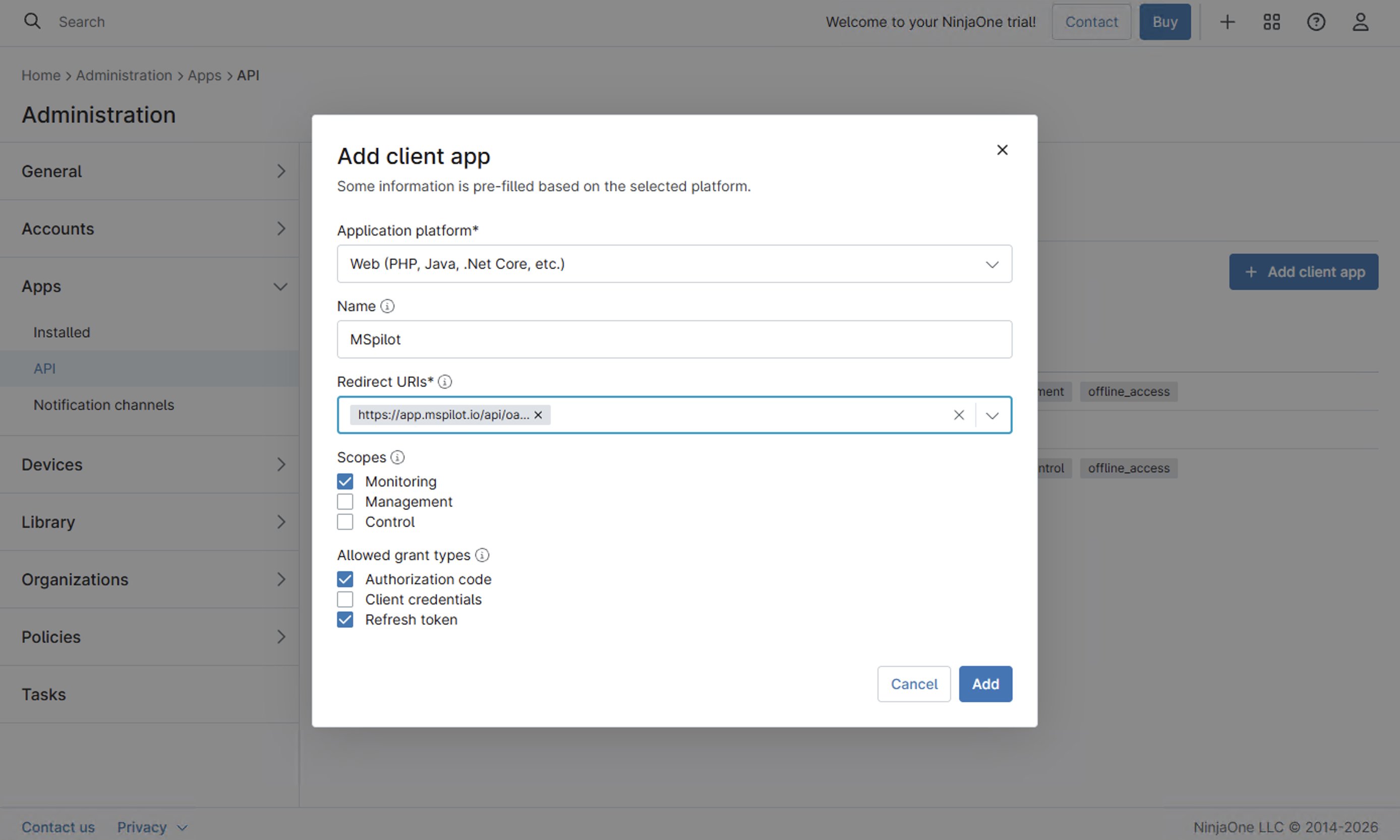
- Set Application platform to Web (PHP, Java, .Net Core, etc.). Don’t choose API Services (machine-to-machine). MSPilot sends you through NinjaOne authorization, which that platform doesn’t support.
-
Set Name to
MSPilot. -
Under Redirect URIs, add:
https://app.mspilot.io/api/oauth/connections/ninjarmm/callbackUse the hostname you actually sign in to. The URI must match exactly. - Under Scopes, select Monitoring only. Leave others off.
-
Under Allowed grant types, select Authorization code and Refresh token. Leave others off.
-
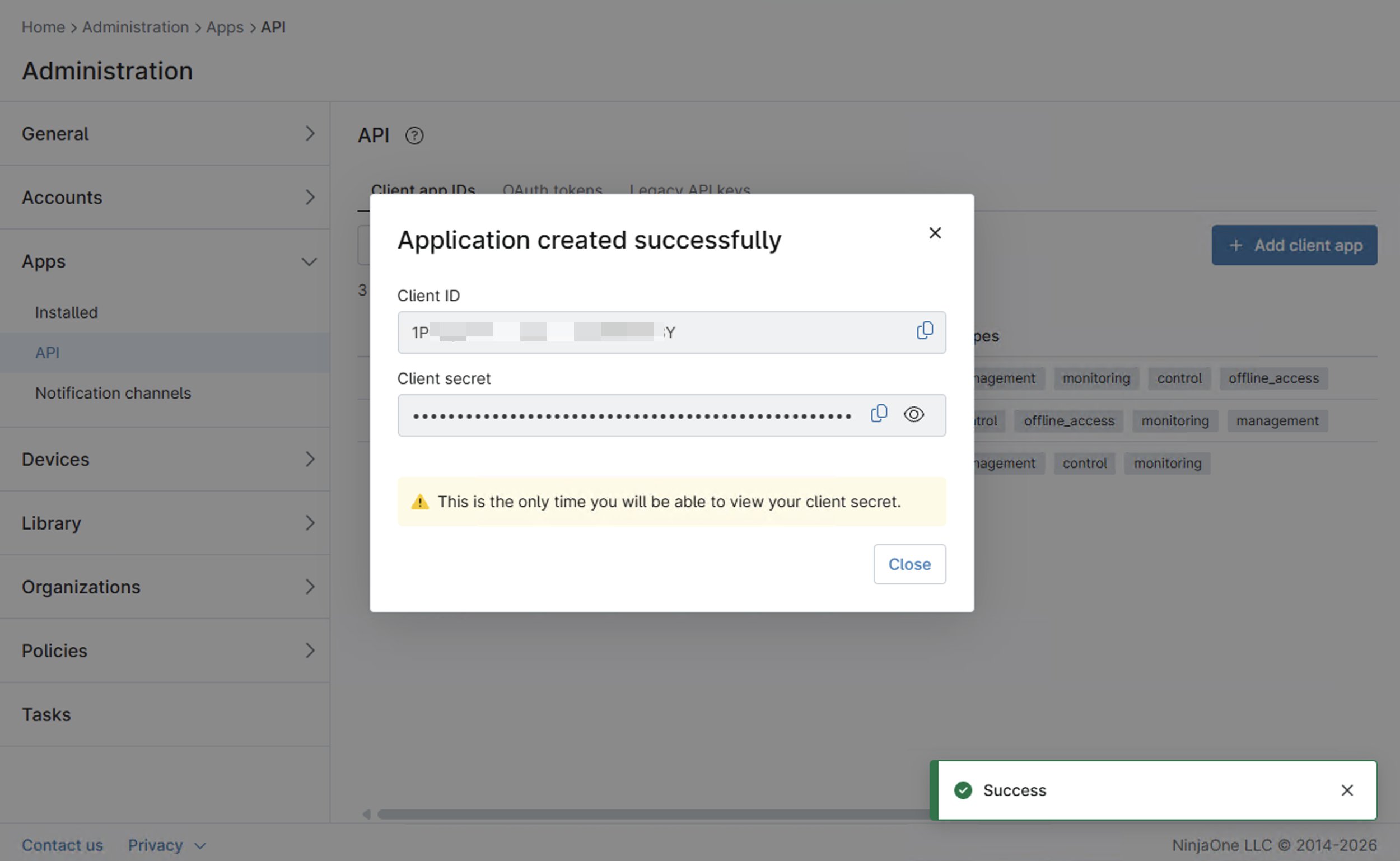
Click Add. Copy the Client ID and Client Secret to a password manager before you close the dialog. NinjaOne typically won’t show the secret again.
Connect NinjaOne
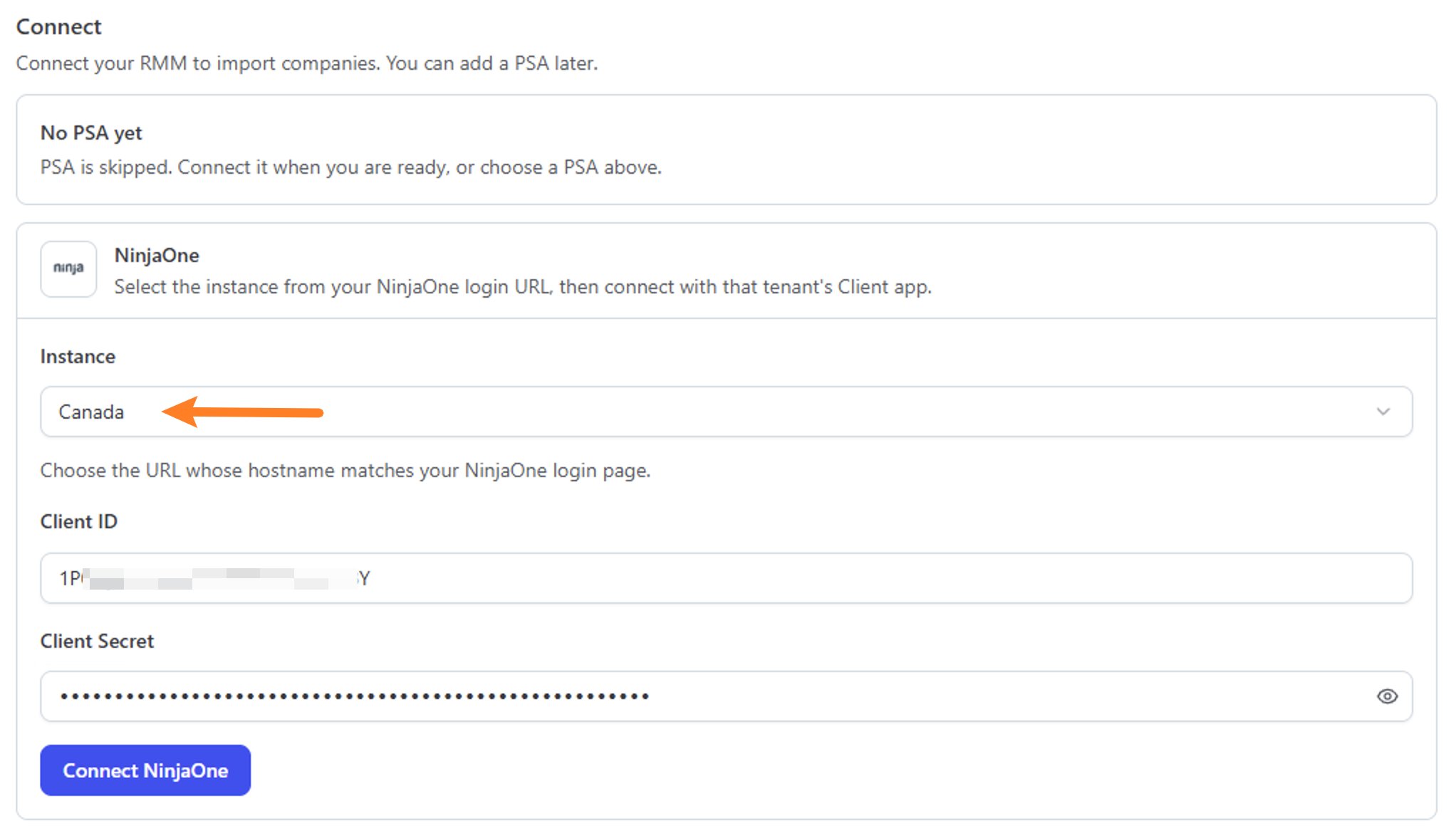
- In MSPilot, open Integrations and choose NinjaOne.
- Select the Instance that matches the URL you sign in to NinjaOne with — not the country your company is in. If you sign in at
https://ca.ninjarmm.com, choose Canada. - Paste Client ID and Client Secret.
- Click Connect NinjaOne, then approve access in NinjaOne when you’re redirected.
After you connect
MSPilot syncs devices from NinjaOne into your clients. Map each client to the Ninja organization that should supply its device inventory. Each Ninja organization can map to only one client.Install the agent
Connecting syncs devices. It does not install the agent.Windows
On the client, open Deployment. Under AI applications, tick the apps to install, then choose Copy script (mspilot-deploy.ps1). The copy is a short launcher: replace any older MSPilot script saved in NinjaOne once. In NinjaOne, save it as MSPilot install and enroll, select the Windows devices, and run it as SYSTEM. When Claude Desktop is included, keep a user signed in during the run, and restart Windows if the job reports reboot_required=true. You do not schedule a pull job; the agent schedules its own. Details are on Install.
macOS
On the client, open Deployment, pick macOS, and choose Copy script. In NinjaOne, create a new script. Only change these fields:
Save the script. Select the Apple Silicon Macs (macOS 12 or later) and run it. It runs as root, so nobody needs to be signed in. The signed-in user’s AI apps are configured right away; other users at their next sign-in, then every 3 minutes. You can schedule the same script daily; running it again is a safe repair. You do not schedule a pull job in your RMM; the agent runs its own config pull for each user at sign-in and every 3 minutes. What success and each exit code look like: macOS.